Zendesk time tracking should let an agent record billable work without leaving the ticket. The reliable pattern is simple: connect each ticket to a client project, support both a live timer and dated manual entry, preserve editable ticket context, and review the resulting time in a proper timesheet before invoicing.
That distinction matters for managed service providers, outsourced support desks, IT consultancies, and professional services teams. Zendesk is excellent at recording the conversation and resolution. A billing system must also answer who worked, for how long, for which client and project, and whether the entry is ready to charge.
What Does Zendesk Time Tracking Need To Capture?
A useful ticket-time record needs more than elapsed browser time. It should contain:
- The Zendesk ticket number and a link back to the ticket.
- The customer-facing subject or a clearer, editable work description.
- The person who performed the work.
- The client, project, and task that should receive the time.
- The work date and duration.
- A stable connection between the ticket and the timesheet entry.
Zendesk’s own Time Tracking app measures agent time on a ticket and stores values such as Time spent last update and Total time spent for reporting. Its official setup guide and usage guide are the right references when the goal is native handling-time analysis.
Client billing introduces another layer. Ticket handling time must become a reviewed entry against the correct commercial project. That is the job Keito’s Zendesk integration is designed to handle.
Why Is “Zendesk Time Tracking” A Distinct Search And Buying Need?
Our SEMrush research snapshot on 8 September 2026 found focused, commercially meaningful demand in the US database:
| Query | Monthly US volume | Keyword difficulty | CPC |
|---|---|---|---|
| zendesk time tracking | 260 | 28 | $14.05 |
| zendesk time tracking app | 110 | 18 | $14.09 |
| time tracking app zendesk | 90 | 17 | $18.82 |
| zendesk ticket time tracking | 20 | 0 | Not reported |
The main terms are attainable, but the more interesting gap is intent. Existing pages are strongest on installing a generic timer or reporting on agent handling time. They say much less about dated manual entry, editable ticket context, project allocation, approval, and returning to the correct timesheet entry. Those are the details that decide whether support time is merely measured or can actually support an invoice.
How Keito Time Tracking Works Inside A Zendesk Ticket
Keito runs as a Zendesk Support ticket-sidebar app. Once the Zendesk account is connected to a Keito workspace, each agent signs in with their own Keito identity.
The sidebar then loads the active Keito projects and tasks that person can access. It prefills the notes with the Zendesk ticket number and subject, while keeping the text editable. The saved entry also carries structured Zendesk metadata so Keito can calculate the ticket total and return to the correct ticket-linked timesheet entry.
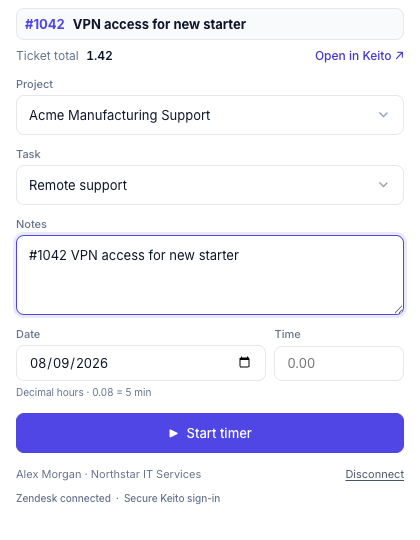
The compact workflow keeps Zendesk as the place where support happens and Keito as the system of record for project time, approvals, reports, and billing.
How Do You Set Up Keito Time Tracking In Zendesk?
Keito for Zendesk is currently a controlled preview rather than a public Marketplace listing. Setup therefore uses a verified private-app package for a named Zendesk account.
- Request preview access from Keito with your workspace name, Zendesk hostname, administrator, and nominated agents.
- Keito enables the named workspace and supplies a versioned private-app ZIP with a checksum.
- A Zendesk administrator verifies the checksum and uploads the ZIP in Admin Center > Apps and integrations > Apps > Zendesk Support apps.
- A Keito owner or administrator signs in first to bind that Zendesk installation to the intended Keito workspace.
- Each additional agent signs in with their own active Keito account.
- The team tests a timer, a dated manual entry, the ticket total, and the link back to Keito on a non-sensitive test ticket.
Zendesk documents the general private-app upload process. The complete Keito-specific sequence, checksum commands, acceptance test, and troubleshooting steps are in the Zendesk integration setup guide.
Should Agents Use A Timer Or Manual Time Entry?
Both belong on the same form because support work does not follow one pattern.
Use a timer when the agent is beginning focused work on the ticket now. Select the project and task, leave the Time field empty, and choose Start timer. The same button becomes Stop timer while that ticket is running.
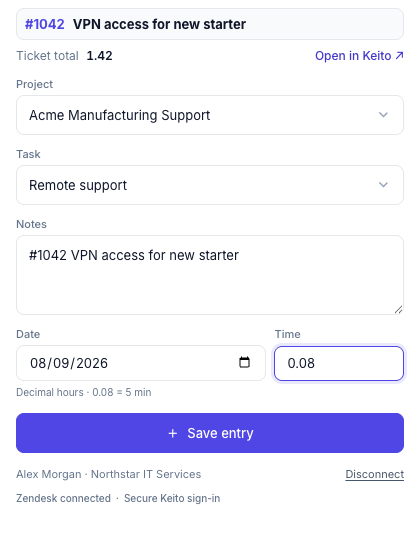
Use manual entry when the work has already happened, belongs to an earlier date, or was completed away from the open ticket. Select the date, enter the duration, and the same action changes to Save entry. Pressing Enter from the Time field saves the entry as well.
This one-field interaction removes a mode switch. Empty means start timing; a value means save that amount.
Can Zendesk Time Be Entered As Decimal Hours?
Yes. The Keito sidebar follows the time convention selected for the Keito workspace.
| Convention | Five minutes | Thirty minutes | One hour and fifteen minutes |
|---|---|---|---|
| Decimal hours | 0.08 |
0.50 |
1.25 |
| Hours and minutes | 0:05 |
0:30 |
1:15 |
Keito converts a valid decimal value to whole minutes when saving. The date can be today or an earlier day, subject to the same approval and timesheet-lock rules used in the main Keito application. Future dates are rejected.
Consistency is important here. If finance reviews time in decimals, requiring support agents to think in a second format creates avoidable mistakes. The sidebar should use the workspace setting rather than inventing an integration-specific convention.
How Do Ticket Totals And Timesheet Links Work?
The sidebar displays Ticket total, the combined Keito duration associated with the current Zendesk ticket. It uses the same decimal or hours-and-minutes display convention as the workspace.
The Open in Keito link opens a new tab in Keito’s Day view. When the user has access to an existing entry, Keito selects that entry for review or editing. Owners and administrators can be directed to an accessible team entry; other users are limited to entries permitted by their role.
This closes an important operational loop. The sidebar is optimised for quick capture, while Keito’s full Day view is the right place to correct details, review surrounding work, and apply normal approval or invoicing controls.
How Does Ticket Time Become Billable Time?
For a professional services team, the strongest workflow is:
- Configure clients and projects in Keito. A support agreement, retainer, or implementation project should have a clear home before agents start logging.
- Assign the delivery team. Agents only see active projects and tasks they are allowed to use.
- Capture time at the ticket. Use the live timer for current work and manual entry for completed or backdated work.
- Keep notes client-readable. The ticket number and subject provide a useful starting point, but agents can replace an unclear email subject with a concise description of the work performed.
- Review in Keito. Leads can use the ticket link and normal timesheet views to correct allocation before approval.
- Approve and report. Approved project time can feed utilisation, budget, client reporting, and invoicing workflows.
The ticket reference is evidence, not the whole invoice description. A note such as #1042 VPN access for new starter is more useful to a client than a generic support entry, while the structured ticket metadata preserves the link for internal review.
Native Zendesk Tracking, Browser Extensions, Or Keito?
The right option depends on what you need the time record to do.
| Approach | Best for | Main trade-off |
|---|---|---|
| Zendesk native Time Tracking | Handling-time analysis and Zendesk Explore reporting | Focuses on ticket metrics rather than project billing workflows |
| Browser-extension timer | Teams already committed to a general timer product | Depends on per-browser installation and extension behaviour |
| Keito ticket-sidebar integration | Ticket-linked project time, dated manual entry, review, reporting, and billing | Currently requires controlled-preview enablement and private-app installation |
Do not choose solely on whether a timer button exists. Check whether agents can correct yesterday’s time, whether the ticket subject remains editable, whether the duration format matches finance, and whether a reviewer can reach the exact timesheet entry in one click.
Does The Integration Need Reinstalling After Every Update?
Normally, no. The Zendesk package is deliberately small and loads the compatible interface from Keito’s hosted application. Refreshing the ticket or using Zendesk’s Reload all apps action loads normal UI and behaviour updates.
A Zendesk administrator only needs a replacement ZIP when Keito explicitly announces a package-level change, such as a manifest or permission update.
How Is The Connection Secured?
Zendesk sends a signed app launch to Keito. Keito verifies the account, installation, current user, Zendesk product, and sidebar location before serving the interface. Zendesk’s signed URL documentation explains the general external-app pattern.
Each agent then connects their own Keito account through an authorisation-code flow with PKCE. Long-lived connection credentials remain encrypted on the server; they are not placed in browser local storage or inside the private-app ZIP. The browser receives a short-lived session dedicated to the sidebar.
The current integration reads the ticket context needed to attribute time. It does not use the Zendesk REST API to change ticket comments, status, assignee, or fields.
Zendesk Time Tracking Rollout Checklist
Use a non-sensitive test ticket and verify all of the following before rolling out to the team:
- The expected Keito workspace appears in the sidebar footer.
- Each agent sees only the projects and tasks they should use.
- The ticket number and subject are prefilled and editable.
- Starting and stopping a timer updates the ticket total.
- A manual entry can be saved for an earlier date.
- Decimal or H:MM entry matches the workspace convention.
- Pressing Enter saves a populated manual duration.
- Open in Keito opens the expected day and entry.
- Refreshing the ticket keeps the connection and total.
The full Zendesk integration documentation includes troubleshooting for expired sessions, missing projects, timers running elsewhere, suspended browser tabs, and entries that cannot be edited.
Key Takeaway
Billing-grade Zendesk time tracking connects ticket context to the right client project, supports both current and backdated work, and gives reviewers a direct route from the ticket to the timesheet entry.
Frequently Asked Questions
Does Zendesk have time tracking?
Zendesk offers its own Time Tracking app for measuring agent time on tickets. Keito adds a separate project-time workflow for teams that need ticket context, client projects, dated manual entries, timesheet review, reporting, and billing.
How do I track time on a Zendesk ticket with Keito?
Open the Keito app in the ticket sidebar, choose an assigned project and task, review the notes, and leave Time empty to start a timer. To log completed work, choose a date and enter a duration before saving.
Can I add time to yesterday’s Zendesk ticket?
Yes. Choose the earlier date and enter the duration manually. Keito accepts today or a past date, subject to the workspace’s approval and lock rules.
Can I enter 0.08 for five minutes?
Yes, when the Keito workspace uses decimal hours. In an hours-and-minutes workspace, enter 0:05 instead.
Does every Zendesk agent need a Keito login?
Yes. Each agent connects their own active Keito account so time is attributed to the correct person and access follows their workspace role and project assignments.
Does the Keito Zendesk app update the Zendesk ticket?
No. The current integration reads the authorised ticket context and creates a Keito time entry. It does not change the ticket’s status, assignee, comments, or fields.
Do I need to reinstall the app when Keito updates it?
Normally not. Refresh the ticket or reload Zendesk apps to receive compatible hosted updates. Keito will explicitly tell administrators if a package-level change requires a new ZIP.
Track Ticket Work Without Reconstructing It Later
If your support team bills by time, the record should be created while the ticket context is still visible—not reconstructed from memory at the end of the week.