To track time in Asana with Keito, install Keito from the Asana app gallery, connect your Keito Business workspace, then open an Asana task and choose Track time in Keito. Leave Duration blank to start a timer, or enter 1:30, 90m or 1.5h to log time you have already worked. The entry is stored in Keito, linked back to the Asana task, and ready for review, reporting and billing.
Keito for Asana is now generally available on the Keito Business plan and listed in the Asana app gallery. This guide explains how it works, how to set it up, and what it deliberately does not do.
What Is Keito For Asana?
Keito for Asana is a native Asana integration built with Asana App Components. It adds two things to Asana tasks:
- A Track time in Keito form for starting a timer or logging a duration.
- A Keito widget that shows team time, your time and whether your timer is running.
There is no browser extension to install. Delivery stays in Asana, and the time record lives in Keito, where it can be reviewed, reported on and billed.
If you are comparing approaches for Asana teams, the Asana time tracking with Keito overview covers the billing workflow at a higher level.
How Is This Different From Asana’s Native Time Tracking?
Asana has its own time tracking. Asana lists it as included in its Advanced, Enterprise and Enterprise+ plans (Asana time tracking features). When time tracking is turned on for a project, Asana adds Estimated time and Actual time fields, and people can use a built-in timer or enter time manually on a task (Asana Help Center).
Keito for Asana is a separate workflow for teams whose time record needs to live in Keito:
| Asana native time tracking | Keito for Asana | |
|---|---|---|
| Where time is stored | Asana’s Estimated time and Actual time fields | Keito time entries, linked back to the Asana task |
| How time is captured | Asana’s timer or manual entry | Keito timer or a logged duration from the Track time in Keito form |
| What time is attached to | The Asana task | A Keito project and task, with the Asana task name, ID and link |
| Plan | Asana Advanced, Enterprise or Enterprise+ | Keito Business |
The two do not overlap. Keito never writes to Asana’s native time-tracking fields, comments or timesheets. For a wider look at Asana’s built-in options, workarounds and other integrations, see Does Asana have time tracking?
Before You Start
- Keito Business plan. Keito for Asana is included in Keito Business. Solo and Pro workspaces are asked to upgrade.
- A Keito owner or administrator makes the first connection for the workspace.
- Each teammate then connects their own Asana and Keito accounts, so time is attributed to the right member.
If someone tries to connect a workspace that is not on Business, the Keito sign-in popup shows: “Asana time tracking is included in the Keito Business plan. Upgrade this Keito workspace to Business, then try again.” A Keito owner or administrator can upgrade in Settings > Billing. The plan details are on Plans & Pricing.
How To Install Keito In Asana
- Open the Keito listing in the Asana app gallery and install it, or use the direct install link.
- Authorise Asana when prompted.
- Sign in to Keito in the popup. The first person to do this must be a Keito owner or administrator.
- Open an Asana task and choose Track time in Keito.
To add Keito to more Asana projects later, open the project and use Customize > Apps.
The step-by-step setup and troubleshooting live in the Asana integration guide.
How The Connection Model Works
Keito connects at two levels:
- Workspace connection. A Keito owner or administrator links the Asana workspace to the Keito workspace. This happens once.
- Personal connections. Each person connects their own Asana and Keito accounts the first time they use the form. That is how Keito knows which member did the work.
On security: Asana’s requests to Keito are signed, and Keito verifies them. Sign-in uses OAuth, and Keito encrypts stored Asana credentials.
How To Start A Timer From An Asana Task
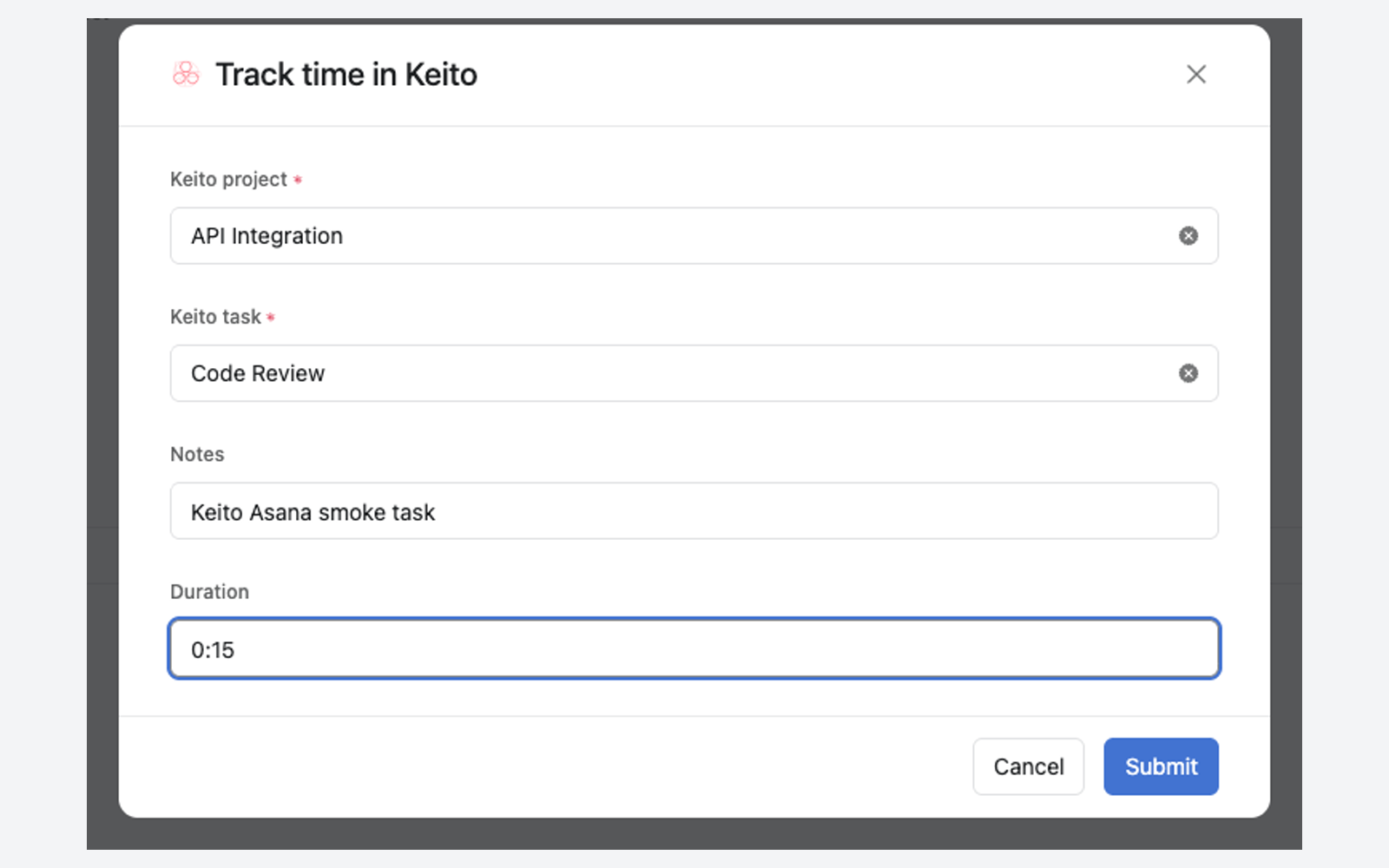
- Open the Asana task and choose Track time in Keito.
- Pick the Keito project and task.
- Keep the notes, which default to the Asana task name, or edit them.
- Leave Duration blank and submit. Keito starts a timer.
Starting the timer attaches Keito to the task, and Asana then hides the Track time in Keito entry point on that task. To stop the timer, stop it in Keito. Alternatively, choose Remove from task on the Keito resource in Asana, open Track time in Keito again, and submit with Duration blank.
If a timer is already running on other work, the form asks what to do. Choose Stop it and switch to this work to stop the current timer and start timing this task. Keito never replaces a running timer silently.
How To Log Time You Already Worked
Enter a duration instead of leaving the field blank. Keito accepts formats such as:
| You type | Keito logs |
|---|---|
1:30 |
1 hour 30 minutes |
90m |
90 minutes |
1.5h |
1.5 hours |
Logging a duration does not stop a timer you have running elsewhere, so you can record a finished call or review without interrupting the work you are timing now.
Every entry keeps the Asana task name, ID and link, so a reviewer in Keito can open the original task.
Keito Remembers The Project And Task
The first time someone tracks an Asana task, they pick the Keito project and task. Keito remembers that selection for the Asana task and shares it with other authorised members who can access that Keito project. The next person to track the same task starts with the right project and task already selected.
Read Team Time In The Asana Task Widget
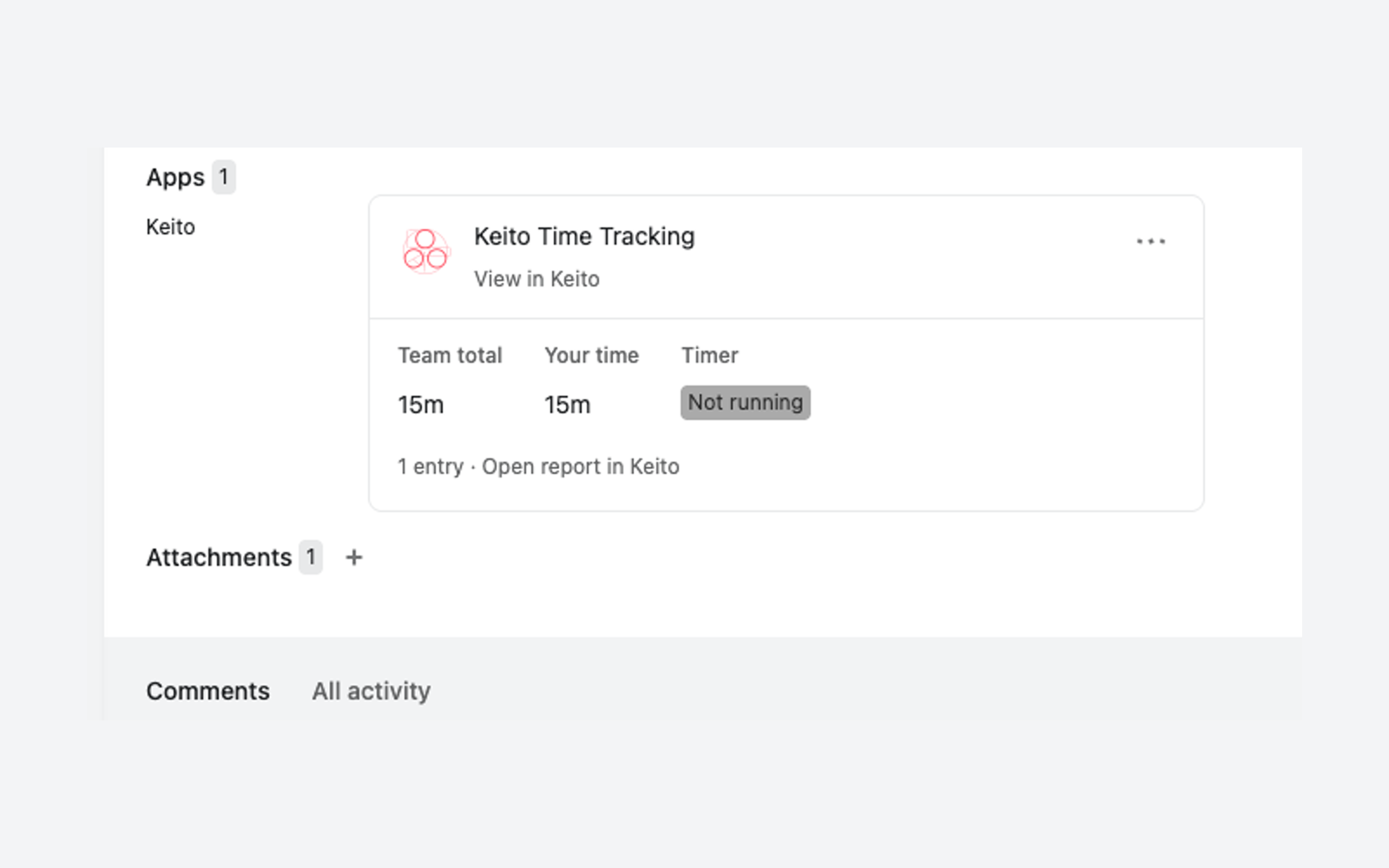
After the first entry, Asana shows the Keito widget on the task with:
- Team total for the task.
- Your time on the task.
- Timer state, showing whether your timer is running.
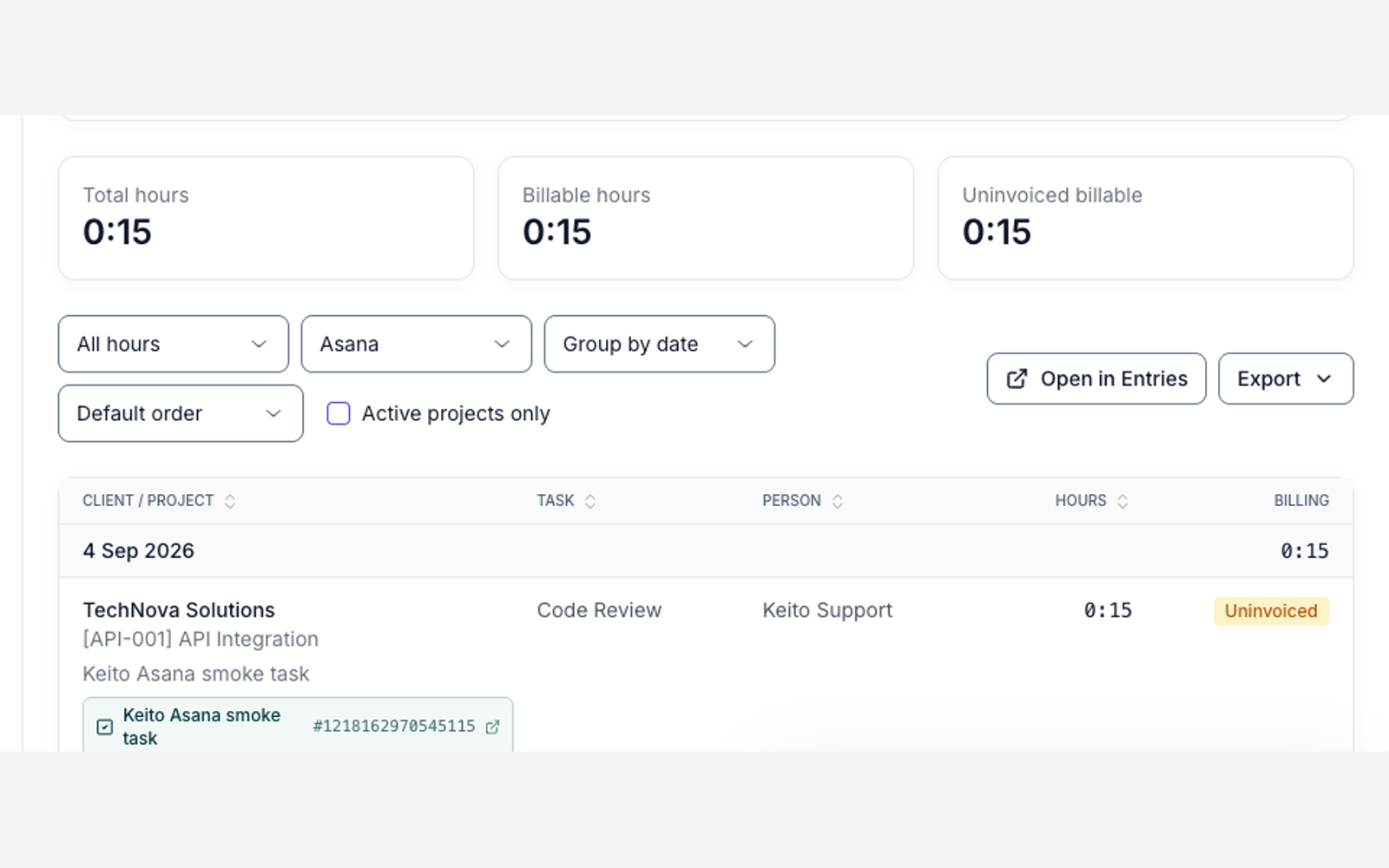
The widget refreshes when Asana reloads it; it does not tick every second. Its Open report in Keito link opens the Keito detailed time report filtered to that Asana task.
Why The Form Disappears After The First Entry
Once a Keito resource is attached to a task, Asana hides the app entry point on that task. To track more time on it, use Keito, or choose Remove from task on the Keito resource in Asana first.
Import Asana Projects And People
Keito owners and administrators can bring Asana structure into Keito from Settings > Integrations > Asana. The first time, choose Reconnect Asana to grant Keito read access to Asana projects, people and teams.
- Projects. Tick the Asana projects you want and choose a Keito client for each. Keito suggests the Asana team name, or the workspace name, as the client. Asana tasks are not imported; imported projects get your workspace’s default Keito tasks, so they appear in the Asana form straight away.
- People. Invite Asana workspace members as Keito members. Guests without an email address are skipped. You can import without sending invitations and send them later from the Team page.
Keep Projects In Sync With Asana
Turn on Sync projects from Asana and Keito checks Asana every 15 minutes by default, using the connection of an administrator you choose. The interval can be changed.
- Renaming a project in Asana renames it in Keito.
- Archiving a project in Asana archives it in Keito, and unarchiving restores it.
- With Create Keito projects for new Asana projects on, projects created in Asana after sync was enabled are added to Keito.
While a project syncs, Asana owns its name and archived state. Keito owns its client, billing, budget, tasks and assignments. Pausing a project keeps the edits made in Keito. Sync never deletes anything and never writes to Asana.
The full admin guide, including troubleshooting, is Asana Import & Project Sync.
What Keito For Asana Does Not Do
- It does not write to Asana. Time is stored only in Keito, and Keito never changes Asana’s native time-tracking fields, comments or timesheets.
- It does not import Asana tasks. Project import brings in projects and gives them your default Keito tasks.
- Project sync does not delete anything, in Keito or in Asana.
- The widget does not show a live, second-by-second clock.
- It is not available on Keito Solo or Pro.
- It does not need a browser extension.
Rollout Checklist
Before you roll Keito for Asana out to the whole team, check:
- The Keito workspace is on the Business plan.
- A Keito owner or administrator has made the first connection.
- Keito is added to the Asana projects your team tracks time on.
- You can start a timer from a test task, then stop it in Keito.
- You can log a duration such as
0:15from a different test task. - The widget shows the entry, and Open report in Keito opens the report for that task.
- Each teammate has connected their own Asana and Keito accounts.
- If you plan to import or sync, an administrator has chosen Reconnect Asana once.
Key Takeaway
Keito for Asana lets Business teams start timers and log billable time from Asana tasks, keeps every entry linked to its task, and shows team and personal totals on the task, while the time record stays in Keito for review and billing.
Frequently Asked Questions
How do I track time in Asana with Keito?
Install Keito from the Asana app gallery, connect your Keito Business workspace, then open an Asana task and choose Track time in Keito. Pick a Keito project and task, leave Duration blank to start a timer, or enter a duration such as 1:30, 90m or 1.5h to log time.
Which Keito plan includes the Asana integration?
Keito for Asana is included in the Keito Business plan. Solo and Pro workspaces are asked to upgrade, and a Keito owner or administrator can upgrade in Settings > Billing.
Does Keito change Asana’s native time tracking?
No. Time is stored only in Keito. Keito never writes to Asana’s native time-tracking fields, comments or timesheets, and project sync never writes to Asana.
Does every team member need to connect Keito?
Yes. A Keito owner or administrator makes the first connection for the workspace, and each person then connects their own Asana and Keito accounts so time is attributed to the right member.
Can I log time without stopping a running timer?
Yes. Enter a duration such as 1:30, 90m or 1.5h. Logging a duration does not stop a timer running elsewhere. Leaving Duration blank starts a timer instead.
Does Keito import Asana tasks?
No. Keito imports Asana projects and people. Imported projects get your workspace’s default Keito tasks, so they are ready to use in the Asana form straight away.
How often does Asana project sync run?
Project sync runs every 15 minutes by default, and the interval can be changed. It renames and archives synced Keito projects to match Asana, and it never deletes anything or writes to Asana.
Why can’t I see Track time in Keito on a task?
If a Keito resource is already attached to the task, Asana hides the app entry point. Track more time in Keito, or choose Remove from task on the Keito resource first.
Start Tracking Asana Work In Keito
Install Keito from the Asana app gallery, then follow the Asana integration guide to connect your workspace. Admins planning to import or sync projects should read Asana Import & Project Sync.