Configure Microsoft Entra SSO
Microsoft Entra SSO lets your team authenticate to an existing Keito workspace through your Microsoft Entra tenant. Keito supports SAML SSO for Microsoft Entra. OIDC and SCIM provisioning are not included.
This guide starts after Microsoft Entra SSO has been enabled for the workspace. Only a Keito workspace Owner or Administrator can configure, test, or require SSO. Contact Keito if the Entra SSO controls are not visible in Settings → Security.
How your team signs in
Your team does not need a separate Keito login page or a WorkOS account.
- From the normal Keito sign-in page at
https://app.keito-test.com/signin, a teammate enters their company email and is sent to Microsoft Entra after the domain is configured. - Keito also provides a Team sign-in link in Settings → Security. It goes directly to the workspace’s Entra connection and can be bookmarked or shared with the team.
- While SSO is optional, existing Google and email-code sign-in methods continue to work.
- After Require SSO is enabled, a Google or email-authenticated session must reauthenticate through Entra before accessing this workspace. The person’s access to any other Keito workspace is unchanged.
SSO proves identity; it does not grant workspace access. A person must still have an active Keito account and active membership in the workspace.
Before you start
Prepare the following before changing either system:
- a Keito workspace with Microsoft Entra SSO enabled;
- a Keito Owner or Administrator account;
- permission in Microsoft Entra to create and configure an Enterprise Application and assign users or groups;
- a second active Keito administrator and an existing administrator session that you keep open until testing is complete;
- a standard Entra pilot user who is already an active member of the Keito workspace; and
- an exact match between each person’s verified Keito email and the email claim Entra will send.
Assigning a user or group to the Entra Enterprise Application does not invite that person to Keito. Invite and review teammates in Keito first.
For guest users, do not assume the Entra #EXT# User Principal Name is the address they use in Keito. Confirm the actual email claim. Keito rejects a mismatch instead of guessing which account to attach.
1. Open the guided setup
Select Verify company domain first. Keito opens a secure, short-lived WorkOS Admin Portal session to prove that your organization controls the sign-in domain. The person completing setup does not need a WorkOS account or access to the WorkOS dashboard.
Then select Configure Microsoft Entra. Keito opens a separate short-lived, workspace-bound setup session. Choose Microsoft Entra ID (SAML) as the identity provider.
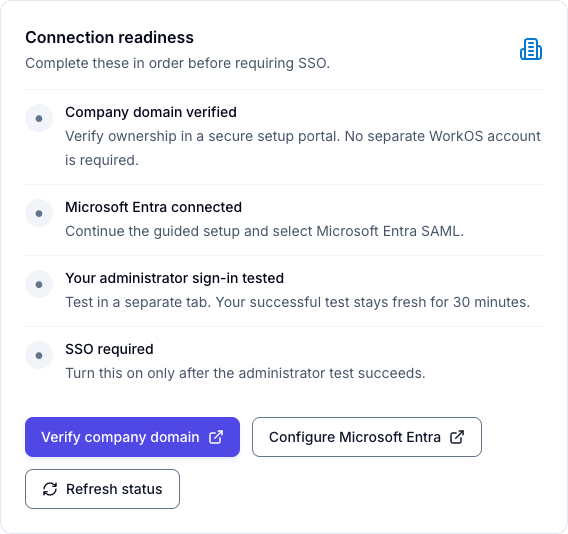
Keep the WorkOS setup page open. It contains the unique Entity ID and Assertion Consumer Service (ACS) URL that you will copy into Entra.
2. Create the Enterprise Application in Entra
In the Microsoft Entra admin center:
- Open Entra ID → Enterprise applications.
- Select New application, then Create your own application.
- Choose the option to integrate another application not found in the gallery.
- Name the application, for example Keito, and create it.
- Open Single sign-on, then choose SAML.
Microsoft’s enterprise application SAML setup guide describes the surrounding Entra controls.
Enter the basic SAML configuration
In Entra’s Basic SAML Configuration, copy the two values from the WorkOS setup page:
| Microsoft Entra field | Value from the WorkOS setup |
|---|---|
| Identifier (Entity ID) | Entity ID |
| Reply URL (Assertion Consumer Service URL) | ACS URL |
Copy these values exactly. Do not reuse values from another Keito workspace or WorkOS environment.
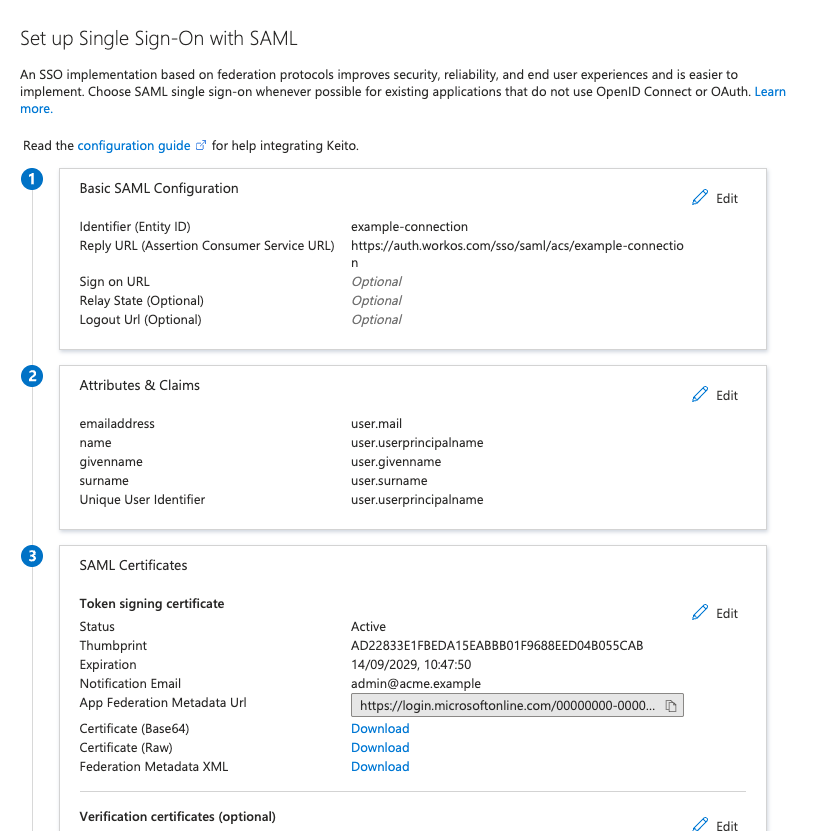
Configure attributes and claims
Set the SAML claims to the following values:
| Claim | Microsoft Entra source attribute |
|---|---|
emailaddress |
user.mail |
givenname |
user.givenname |
name / Unique User Identifier |
user.userprincipalname |
surname |
user.surname |
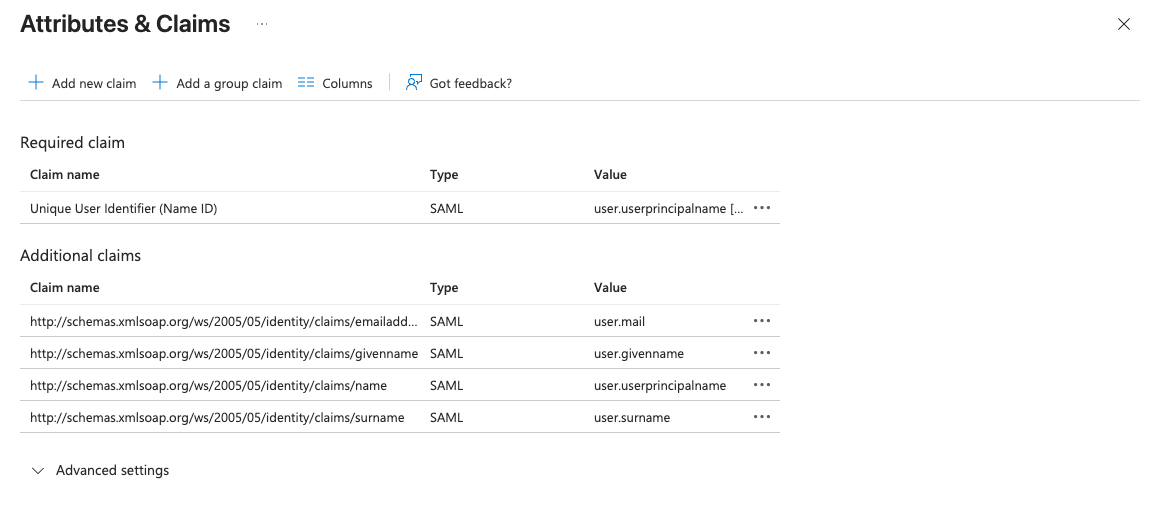
The emailaddress claim is the important account-linking value. It must match the person’s verified Keito email. If user.mail is empty or contains a different alias, correct the Entra attribute or the Keito account email before enabling enforcement. Microsoft’s SAML claims customization guide explains how claims are derived and transformed.
Require assignment and choose pilot users
In the Enterprise Application’s Properties, set Assignment required? to Yes. Then open Users and groups and directly assign the administrator and standard pilot user who will test the connection.
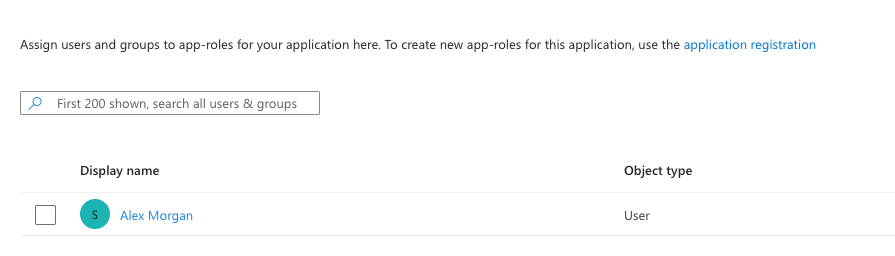
Group-based assignment requires an appropriate Microsoft Entra license, and nested group membership does not cascade to the application. Microsoft’s user and group assignment guide contains the current role and licensing requirements.
Do not use only a Global Administrator for your negative assignment test. Microsoft exempts Global Administrators from the normal user-assignment requirement. Use a standard unassigned user when proving that unauthorized users are denied.
3. Finish the WorkOS connection
In Entra’s SAML Certificates section, copy the App Federation Metadata URL. Paste it into the WorkOS setup and complete the connection.
The WorkOS page should show the Microsoft Entra SAML connection as activated.
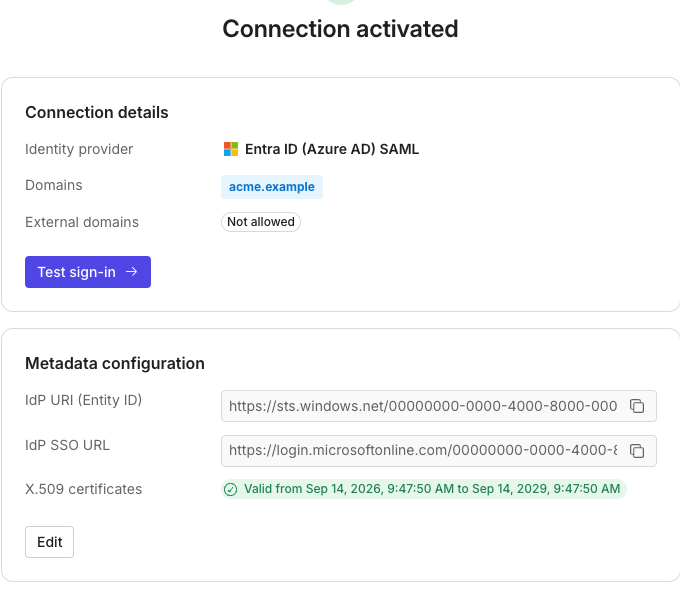
Return to Settings → Security in Keito and select Refresh status. Keito becomes Ready only when WorkOS reports one active Microsoft Entra SAML connection for this workspace.
4. Move existing Google and email users safely
You can invite and use the team before enabling SSO. There is no destructive user migration when the identity email remains the same.
When an existing Google-authenticated or email-code-authenticated teammate signs in through Entra with the same verified email, WorkOS links the new SSO credential to the same WorkOS user. Keito retains the same local user, workspace membership, role, projects, time, invoices, and other records. See WorkOS’s identity-linking behavior for the provider-level model.
Before enforcement, review these cases:
| Existing user state | Expected result |
|---|---|
| Google sign-in and Entra sends the same verified email | The Entra credential links to the existing user. |
| Email-code sign-in and Entra sends the same verified email | The Entra credential links to the existing user. |
| Entra sends a different alias, UPN, or guest address | Stop and correct the email mapping; do not require SSO yet. |
| The person is assigned in Entra but is not a Keito member | Authentication may succeed, but Keito denies workspace access. |
| The Keito user or membership is inactive | Keito denies workspace access. |
Do not delete and recreate existing Keito users to switch them to SSO. That is unnecessary when the verified email matches and risks separating them from their existing workspace records.
5. Test sign-in before enforcement
On Settings → Security, select Test sign-in. Keito opens a separate tab and requires a fresh Entra authentication. After the test succeeds, the successful result remains valid for 30 minutes.
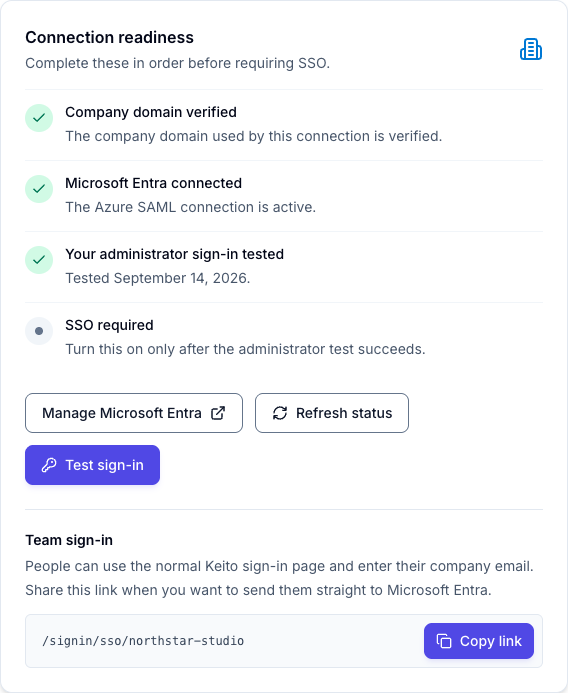
Complete this acceptance check while SSO is still optional:
- Sign in as the Keito administrator through Test sign-in.
- Sign in as the standard assigned pilot user from the normal Keito sign-in page.
- Sign in as the same pilot user from the Team sign-in link.
- Confirm that the pilot reaches their existing Keito account and correct workspace role, with no duplicate user.
- Confirm that an existing Google user and an existing email-code user with matching Entra emails link to their original Keito accounts.
- Use a standard, unassigned Entra user to confirm Entra rejects access with
AADSTS50105. - Confirm a person who authenticates successfully but has no active Keito membership cannot enter the workspace.
If any identity resolves to the wrong user, any user crosses a workspace boundary, or Google/email bypasses required SSO, stop the rollout and contact Keito support.
6. Require SSO
Within 30 minutes of the successful administrator test, turn on Require SSO and review the confirmation.
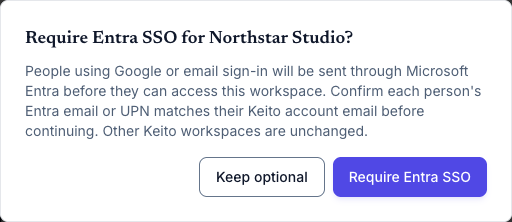
After confirmation, Google and email sessions must reauthenticate through Entra before accessing this workspace. Keep the original administrator session and a second active administrator available while the pilot team verifies access.
You can turn Require SSO off without disconnecting Microsoft Entra. If you suspect a lockout, use the existing administrator session to turn enforcement off first. If no administrator can enter the workspace, contact Keito support; do not delete the Entra Enterprise Application as the first recovery action.
Offboarding without SCIM
The Entra integration does not currently include SCIM user provisioning or deprovisioning. For immediate offboarding, complete both actions:
- remove the person’s assignment to the Keito Enterprise Application in Entra, or disable the Entra account; and
- deactivate the teammate in Keito.
Removing only the Entra assignment prevents a future SAML sign-in, but it may not immediately revoke an already-issued Keito session. Deactivating the Keito membership closes that application-level access gap.
Troubleshooting
| What you see | What to check |
|---|---|
| Setup needed in Keito | Complete the WorkOS connection, then select Refresh status. |
| Keito says the wrong provider is connected | Reopen setup and select Microsoft Entra ID (SAML), not another connection type. |
AADSTS50105 for an intended user |
Assign the user or an eligible direct group to the Enterprise Application. Check nested-group limitations. |
| An unassigned test user can still sign in | Confirm Assignment required? is Yes and repeat the test with a standard user, not a Global Administrator. |
| Require SSO is unavailable | Run a fresh test as the currently signed-in Keito administrator, then enable enforcement within 30 minutes. |
| A Google or email user appears to be different in Entra | Compare the verified Keito email with the SAML emailaddress claim. Correct the alias or guest mapping before enforcement. |
| An assigned Entra user cannot enter Keito | Confirm the person has an active Keito account and active membership in this workspace. |
| The WorkOS connection is inactive | Check the metadata URL, certificate status, and whether the Enterprise Application still exists. Refresh Keito after correcting it. |
| Administrators are locked out | Use an already-open administrator session to disable Require SSO, or contact Keito support. |
Controlled-rollout checklist
Before inviting the wider team:
- Microsoft Entra SSO controls are enabled for the workspace.
- The company domain is verified.
- WorkOS shows one active Microsoft Entra SAML connection.
- Entra claims use the expected email, given name, UPN, and surname attributes.
- Assignment required? is enabled in Entra.
- Each pilot user is both assigned in Entra and active in Keito.
- Existing Google and email-code users reach their original Keito accounts.
- A standard unassigned Entra user is rejected.
- The administrator test passed within the last 30 minutes.
- A second Keito administrator is available for recovery.
- The team has the normal sign-in and direct Team sign-in URLs.
- Offboarding owners understand the two-step process while SCIM is unavailable.
When every check passes, enable Require SSO for the pilot and monitor the first sign-ins before assigning the rest of the organization.
For setup or recovery help, contact Keito without sending passwords, SAML assertions, certificate private keys, or screenshots containing sensitive tenant identifiers.