
Track GitHub issues and pull requests
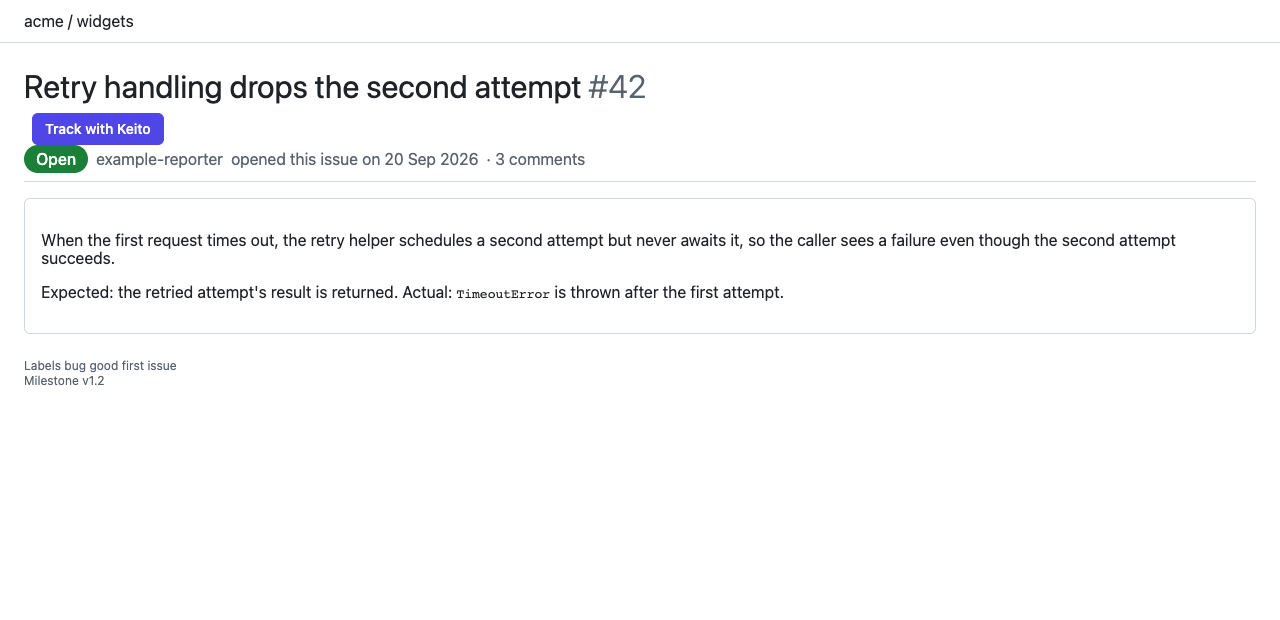
When GitHub is enabled in the extension settings, Track with Keito appears on supported GitHub issue and pull request detail pages at github.com. The button works on private items that your signed-in GitHub account can already view; it does not grant access to a repository.
GitHub tracking is available on Solo, Pro, and Business with an active Keito subscription. Each person installs and connects the extension in their own Chrome profile. No invitation, workspace enablement, or GitHub administrator connection is needed. Your usual Keito project and task permissions still apply.
Install and enable GitHub
- In Keito, open Settings > Integrations > GitHub and choose Install for Chrome, or open Keito Time Tracker in the Chrome Web Store directly. Select Add to Chrome. Use the public Keito Time Tracker listing; the separate BETA listing is for release testing.
- Open the Keito toolbar icon, choose Connect, and sign in to Keito. Select the workspace where you want to save time. See Install and connect for the complete sign-in and API-key options.
- Open Settings in the Keito popup. Under Sites, turn on GitHub, review the
https://github.com/*access request, and choose Enable. - If Chrome asks for site access, choose Allow. The GitHub status should read Enabled. Chrome may reuse access you previously allowed without showing another prompt.
- Open or refresh an issue or pull request detail page on
github.com.
You can leave GitHub off and continue tracking from the toolbar. Site access is optional.
Track an item
- On the issue or pull request, select Track with Keito.
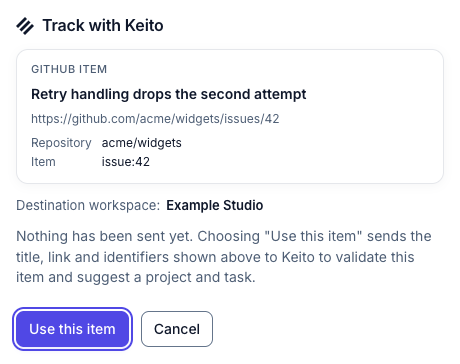
- Review the item title and link in the preview. Select Use this item to ask Keito to validate the reference.
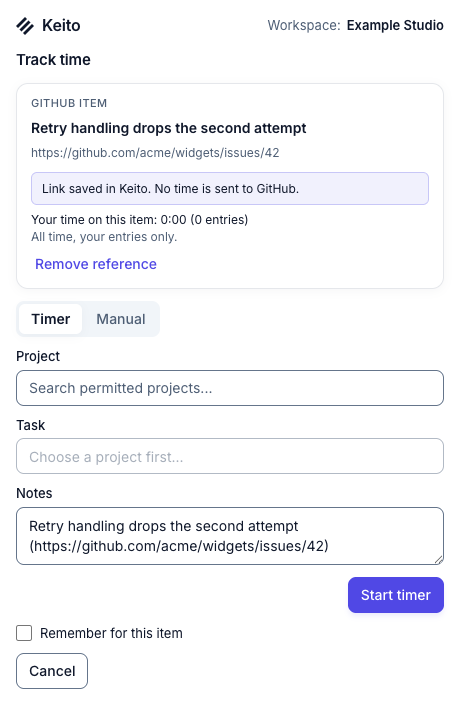
- Choose a permitted Keito project and task, check the notes, and start a timer or use Manual to add time.
- Optionally select Remember for this item so Keito can suggest the same project and task when you revisit it.
For a timer, look for Tracking, then open the Keito toolbar popup and choose Stop when you finish. You can stop from any browser tab; closing the GitHub page does not stop your timer. For manual time, enter the date and duration or time interval, choose Save, and wait for the saved confirmation. See timer, switching, and manual-time instructions.
Find the saved entry in Keito
Open Time in the same Keito workspace and select the date you tracked. In Day view, the entry includes a GitHub #number link to the original issue or pull request, alongside its Keito project, task, and notes. Use Keito’s usual timesheet, reporting, and approval workflows for that time.
The extension suggests notes from the item’s title and link. Review or change those notes before saving. To leave the GitHub reference out of a new entry, choose Remove reference in the Keito form before saving.
Reuse a project and task
Remember for this item saves a destination suggestion for your future tracking on that issue or pull request. After tracking, Use project for this repository can save a repository-level project suggestion. Check the suggested project and task each time, especially when you work in more than one Keito workspace. Suggestions only use destinations you are allowed to access.
What is shared with GitHub and Keito
Keito saves the selected issue or pull request’s title, canonical link, repository, and item identity after you choose Use this item. It does not send your tracked hours to GitHub, post comments, or change issues or pull requests. You do not need to connect a GitHub OAuth app in Keito.
The extension does not record browsing history or automatically infer time from page activity. You choose the work item and explicitly start a timer or save manual time. See permissions and privacy for site-access and sign-out details.
Supported pages
GitHub issue and pull request detail pages on github.com are supported, including private items you can already view. On a pull request, the conversation, files, commits, and checks detail tabs refer to the same pull request.
GitHub lists, repository home pages, Discussions, Projects boards, and GitHub Enterprise Server hosts do not have a button. Open the issue or pull request itself from a list or board to track it.
If the button or timer is missing
| What you see | What to check |
|---|---|
| No Track with Keito button | Confirm the extension is installed in this Chrome profile. In its Settings, check GitHub is Enabled, allow access to github.com, then refresh a supported issue or pull request. |
| The item is private | Sign in to GitHub with an account that can already view it. Keito cannot grant repository access. |
| A different workspace or project | Change the workspace in the Keito popup, reopen Track with Keito, and review the destination before saving. |
| No workspace is available after sign-in | Accounts with personal MFA cannot currently complete the extension’s separate authenticator challenge. Use the Keito web app for that account; see connection requirements. |
| A project or task is missing | Check your Keito membership and project/task permissions. The extension uses the same access as Keito. |
| A timer is already running | Review the running timer and confirm a switch only if you intend to change work. Stop it in the popup or Keito when finished. |
| The result is uncertain after a connection problem | Use Check again when offered. Check Keito’s timer before retrying Start so you do not mistake a saved request for a failed one. |
For further recovery steps, see Troubleshoot Keito for Chrome.
Turn off the GitHub button
Open the extension’s Settings and disable GitHub. Choose Remove access if you also want Chrome to remove its GitHub site grant. Your saved Keito entries and references remain, and toolbar tracking still works. Disabling the site or signing out does not stop a running timer; stop it separately when you finish.
For automated time logging from a GitHub Actions workflow, see the separate Keito GitHub Action guide.