
Automatic Card Payments
Automatic card payments let a client pay every invoice in a recurring series without paying each one by hand. Your client saves a card while paying one invoice, and Keito charges each later invoice to that card as soon as it is emailed.
Automatic card payments are off by default. You choose which recurring invoices offer them, and your client decides whether to turn them on.
How it works
- You turn on Let clients pay automatically by card on a recurring invoice.
- Your client opens an open invoice from that series, ticks the authorization and selects Pay by card and turn on automatic payments.
- Stripe takes the payment for that invoice and saves the card.
- On each later issue date, Keito generates the invoice, emails it and charges the saved card for the invoice total.
- Keito records the payment as it does for any Stripe payment. The invoice moves to Paid, your client receives a receipt and you receive the usual payment-received email.
Charges are made on your connected Stripe account. Keito charges no platform fee, and Stripe’s standard card processing fee applies.
Requirements
Automatic card payments are available on a recurring invoice when:
- Stripe is connected, its account checks pass and card payments are enabled for your workspace;
- the recurring invoice is set to Automatically email the invoice;
- the recurring invoice accepts card payments in its Online payment methods section;
- the card processing fee is not passed on to the client.
Only cards can be used. ACH bank transfers and PayPal can’t be used for automatic payments.
Turn on automatic card payments
- Go to Invoices → Recurring and open the recurring invoice, then select Edit. You can also do this while creating a new recurring invoice.
- Under On the scheduled date, what should happen?, choose Automatically email the invoice. Make sure the client has at least one contact whose Invoice default is set to Recipient.
- In Online payment methods, keep card payments turned on.
- Under Automatic card payments, turn on Let clients pay automatically by card.
- Save the recurring invoice.

Turning the option on doesn’t charge anyone. It only lets your client choose automatic payments.
If the switch is unavailable, the reason is shown below it:
- Available when invoices from this template are sent automatically. Change the scheduled-date action to Automatically email the invoice.
- Not available while the card fee is passed on to the client. Turn off the card fee for this recurring invoice first. While automatic card payments are on, the card fee can’t be passed on.
If you switch an enrolled recurring invoice back to Create a draft invoice for review, saving turns automatic card payments off for that client.
What your client sees
Once the option is on, an Automatic card payments section appears below any open invoice from the series that has a balance to pay and accepts card payments without a card fee. This includes open invoices generated before you turned the option on.
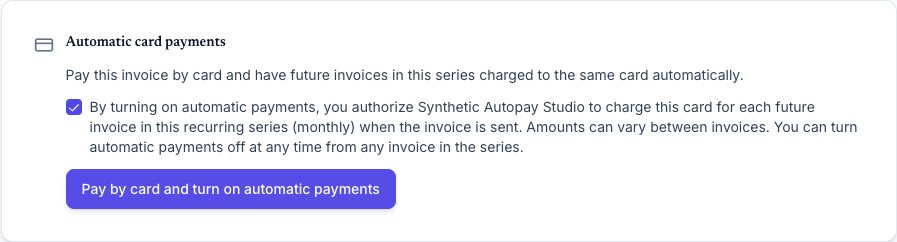
The authorization names your company and the schedule:
By turning on automatic payments, you authorize your company name to charge this card for each future invoice in this recurring series (monthly) when the invoice is sent. Amounts can vary between invoices. You can turn automatic payments off at any time from any invoice in the series.
The schedule reads monthly, yearly or, for a custom schedule, a phrase such as every 2 weeks.
After ticking the authorization, your client selects Pay by card and turn on automatic payments. Stripe Checkout opens for card payment only and repeats the authorization next to the pay button. When the payment succeeds, the invoice is paid and the card is saved for the series.

Your client doesn’t have to opt in. The usual pay button on the invoice still works, and a client who leaves Checkout without paying can pay normally straight away. If you turn the option off while your client is in Checkout, their payment is still recorded but the card isn’t saved.
Each recurring invoice has at most one saved card. To use a different card, your client turns automatic payments off, then turns them on again when paying the next invoice in the series.
When the card is charged
Keito checks recurring schedules daily. When a recurring invoice with an enrolled card is due, Keito generates the invoice, emails it to the recipients and then charges the card for the amount due. Amounts can vary from one invoice to the next, for example on a recurring invoice that bills tracked time.
Keito charges an invoice only after the scheduled email has been sent. If the email fails, the invoice isn’t charged.
While a charge is being processed, nobody can start a second online payment for that invoice, so your client can’t be charged twice. You also can’t revert, void or delete the invoice until the charge finishes.
When Keito skips a charge
Keito sends the invoice but doesn’t charge it when:
- the invoice was already paid;
- your client turned automatic payments off, or you turned the option off on the recurring invoice;
- Stripe can’t currently take card payments for your workspace;
- card payments are turned off on that invoice;
- that invoice passes the card fee on to the client;
- the invoice’s currency differs from the currency your client set up automatic payments in.
For the last four, Keito emails you the reason. Your client can still pay the invoice online from its link.
When a charge fails
| What happened | Does Keito try again? | Your client | You |
|---|---|---|---|
| The card is declined, for example for insufficient funds | Once, 48 hours later | Emailed with the retry date and a link to pay now | Not emailed yet |
| The retry is also declined | No | Emailed and asked to pay from the invoice link | Emailed |
| The bank asks your client to confirm the payment | No | Emailed and asked to pay from the invoice link | Emailed |
| The bank reports the card as lost, stolen, expired or otherwise unusable | No | Emailed and asked to pay from the invoice link | Emailed |
After a failed charge, automatic payments stay on for later invoices. The exception is an unusable card: Keito turns automatic payments off for the series, and your client can turn them on again with a new card when paying an invoice.
If your client pays the invoice before the retry, the retry doesn’t happen.
The emails have the subject Automatic payment for invoice number needs attention. Your client’s email goes to the address they gave in Stripe Checkout when they set up automatic payments. Your email goes to active workspace owners and administrators, except anyone who has turned off payment-received emails under Profile → Notifications → Invoices.
When the result isn’t confirmed
Occasionally Keito can’t confirm a charge’s result with Stripe straight away, for example after a network error. Keito keeps checking with Stripe and blocks a second online payment in the meantime. If the result still can’t be confirmed after seven days, Keito stops and emails you. Check the payment in your Stripe dashboard before asking your client to pay.
See and stop automatic payments
The recurring invoice’s detail page has an Automatic card payments panel. When a client has turned automatic payments on, it shows:
- the card, for example On: Visa ending 4242;
- who set it up and when;
- the card’s expiry date.
To stop automatic payments, select Stop automatic payments and confirm. Future invoices are emailed for your client to pay, and your client can turn automatic payments on again when paying an invoice.
When automatic payments are off, the panel shows the date they stopped and why.
How your client turns automatic payments off
Your client can turn automatic payments off from any invoice in the series. They select Turn off automatic payments and confirm with Turn off. Future invoices are then emailed for them to pay.
You aren’t emailed when your client turns automatic payments off. The recurring invoice’s Automatic card payments panel shows it.
What else stops automatic payments
Automatic payments also stop when you:
- turn off Let clients pay automatically by card;
- switch the recurring invoice to Create a draft invoice for review;
- delete the recurring invoice;
- disconnect Stripe.
When you or your client stops automatic payments, Keito removes the saved card from your Stripe account. After Stripe is disconnected, Keito no longer has access to remove it.
Turning the option back on doesn’t bring back a stopped card. Your client has to opt in again.
Limits
- Cards only. ACH bank transfers and PayPal aren’t supported.
- Automatic card payments can’t be combined with passing the card fee on to the client.
- The invoice email doesn’t mention the automatic charge. Your client receives the usual invoice email and then a receipt once the charge succeeds.
- Clients manage automatic payments from their invoices. The client portal doesn’t have a separate page for them.
Troubleshooting
The Automatic card payments switch is missing
The switch appears only when Stripe is connected and card payments are enabled for the workspace and for the recurring invoice. See Stripe Payments.
My client doesn’t see the option
Check that the invoice is open, has a balance to pay and accepts card payments without a card fee. The recurring invoice must have the option turned on and be set to Automatically email the invoice. If your client already has automatic payments on, the invoice shows that instead of the offer.
An invoice was emailed but not charged
Look for an email from Keito explaining why, and check the reasons under When Keito skips a charge. Your client can still pay from the invoice link.
I can’t void or revert an invoice
A charge may still be processing. Wait a few minutes and try again.