
Migrate from Harvest
The Harvest importer is available during Keito workspace setup and for repeat imports under Settings → Import → Harvest & Forecast → Harvest data. It reads the records available to the authenticated Harvest user, creates their dependencies in the correct order, and shows the status of each migration phase.
Moving your Forecast schedule too? Follow Migrate from Forecast for the separate planning import, where available. Forecast uses a Harvest ID personal access token, but its dated planning bookings have their own selection and review in Settings → Import.
What the importer brings across
You can preview and select the data types you want before the import starts:
| Harvest data | Keito destination |
|---|---|
| Clients | Manage → Clients |
| Projects, project assignments, and tasks | Projects and Manage → Tasks |
| People and roles | Team and Manage → Roles |
| Time entries | Time and Reports |
| Expenses and expense categories | Expenses and Manage → Expense Categories |
| Invoices, line items, and payments | Invoices |
| Retainer funding invoices | Invoices → Retainers, after you map each deposit group to a project. Balances and draw history are not returned by Harvest; see How Harvest retainers are handled. |
| Estimates | Estimates |
| Starter reports | Reports |
The importer does not send invitation emails automatically. An administrator can review imported identities, project assignments, access permissions, and reporting roles before sending invitations.
What you need
- owner or administrator access to the intended Keito workspace, either during setup or through its Import settings;
- a Harvest Account ID;
- a Harvest Personal Access Token;
- a Harvest administrator account with access to the records being migrated;
- the expected source counts for reconciliation.
Create the token in the Developers section of Harvest ID. Harvest’s API authentication documentation has the current token instructions.
1. Configure the Keito workspace
Enter the company identity, currency, timezone, and working-week settings that should apply to new work in Keito.
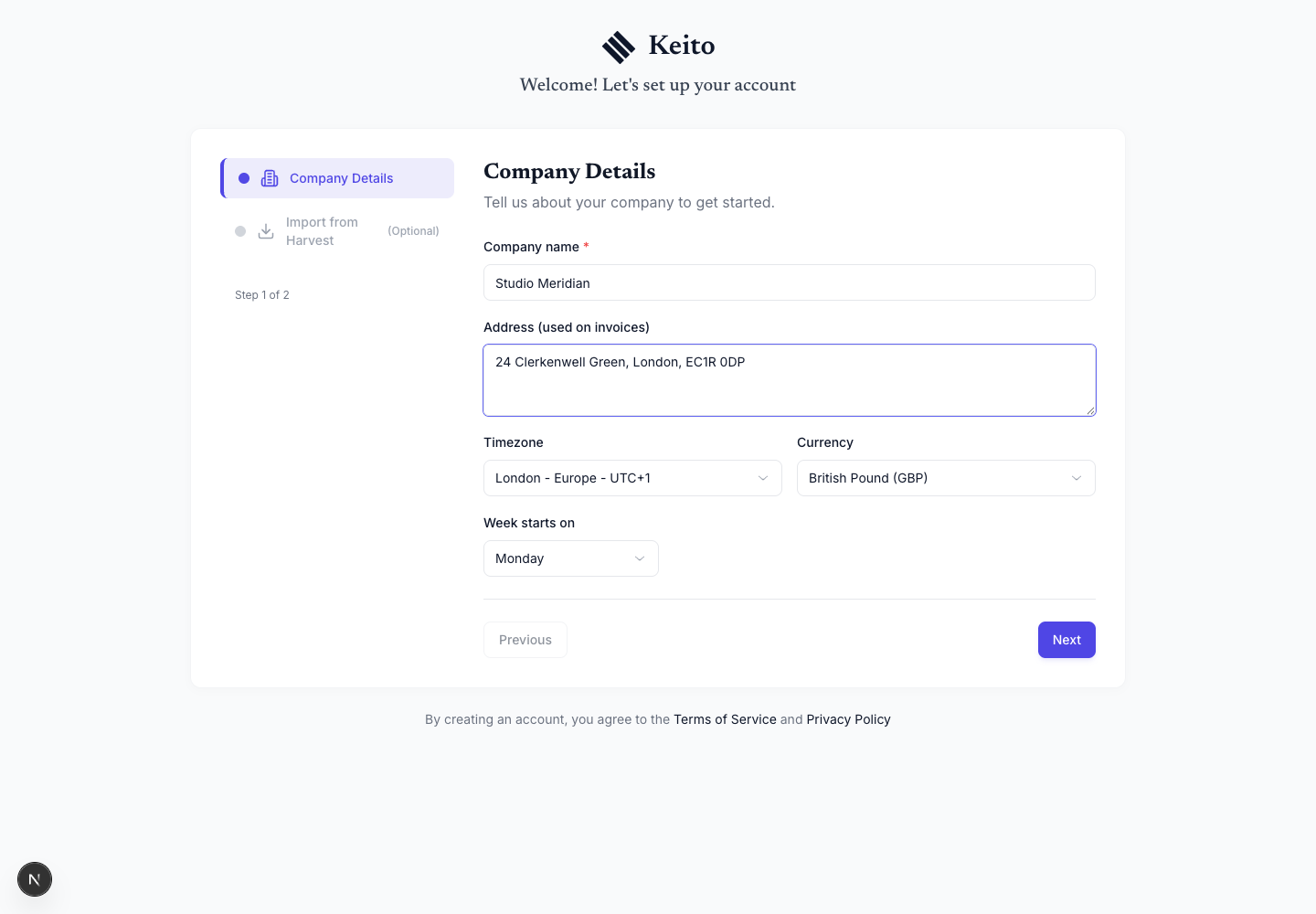
These are target settings. Review them even if similar values already exist in Harvest.
2. Connect Harvest
On Import from Harvest, enter the Account ID and Personal Access Token, then select Test Connection.
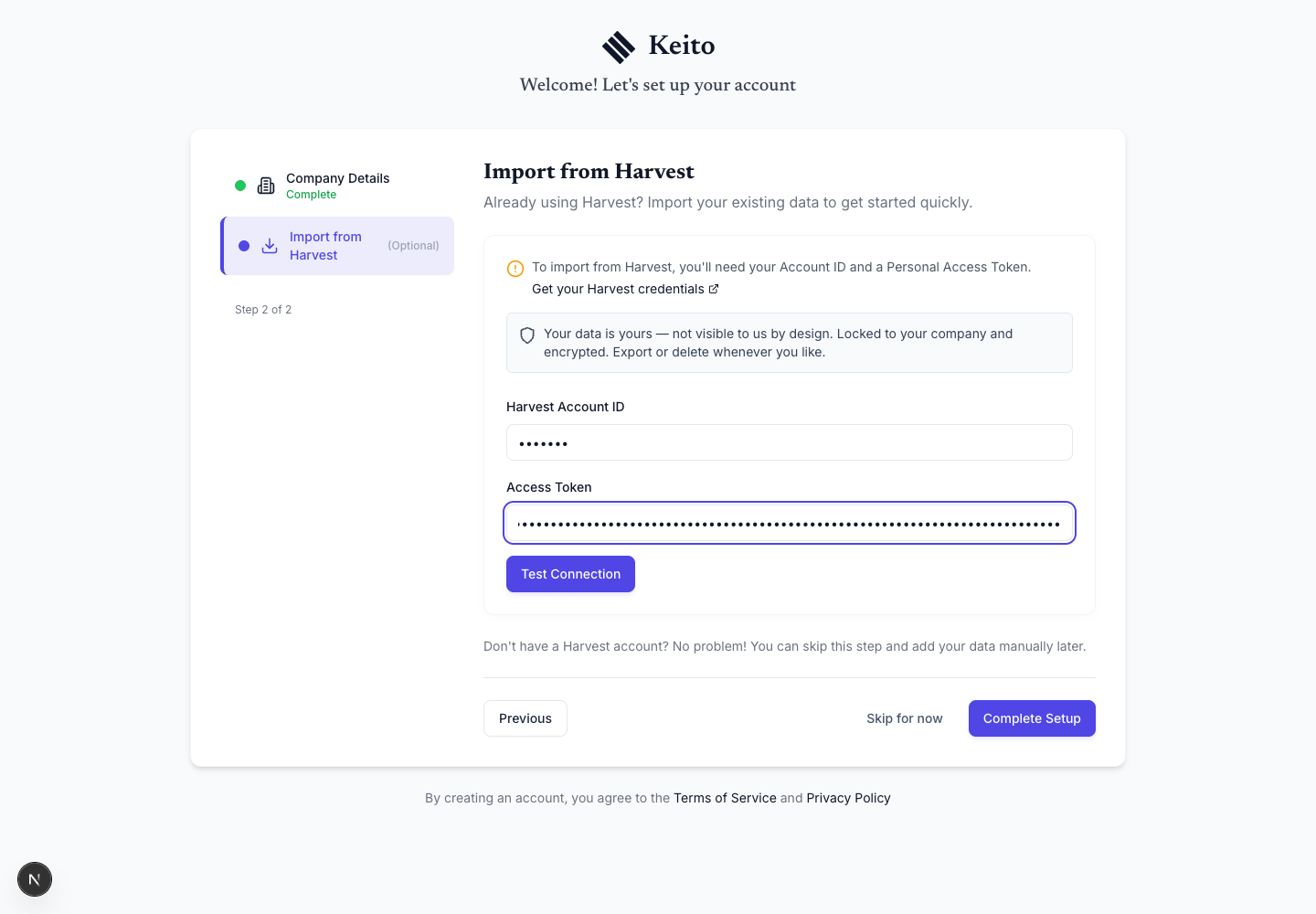
Both fields are masked. Do not expose their values in screenshots or support requests.
If the test fails, confirm:
- the Account ID and token belong to the same Harvest account;
- the token has not been revoked;
- the token owner still has access to the account;
- the Account ID contains digits only;
- neither value has leading or trailing spaces.
3. Review the preview
After a successful connection, Keito shows the number of available records for each supported data type.
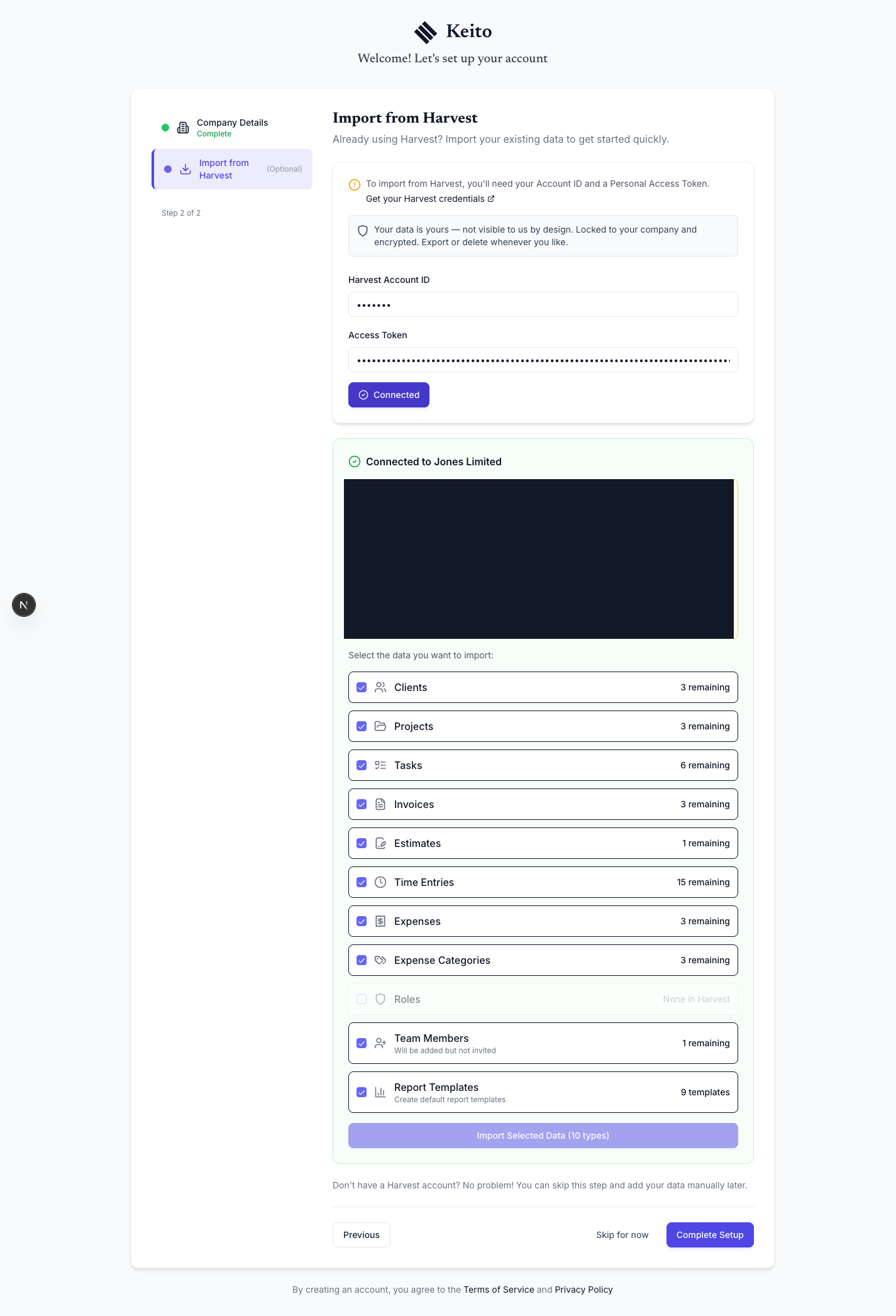
Before continuing:
- compare the preview with your expected source counts;
- select the Harvest user who represents the current Keito login;
- confirm archived or inactive records are represented as expected;
- select the data types you want to migrate.
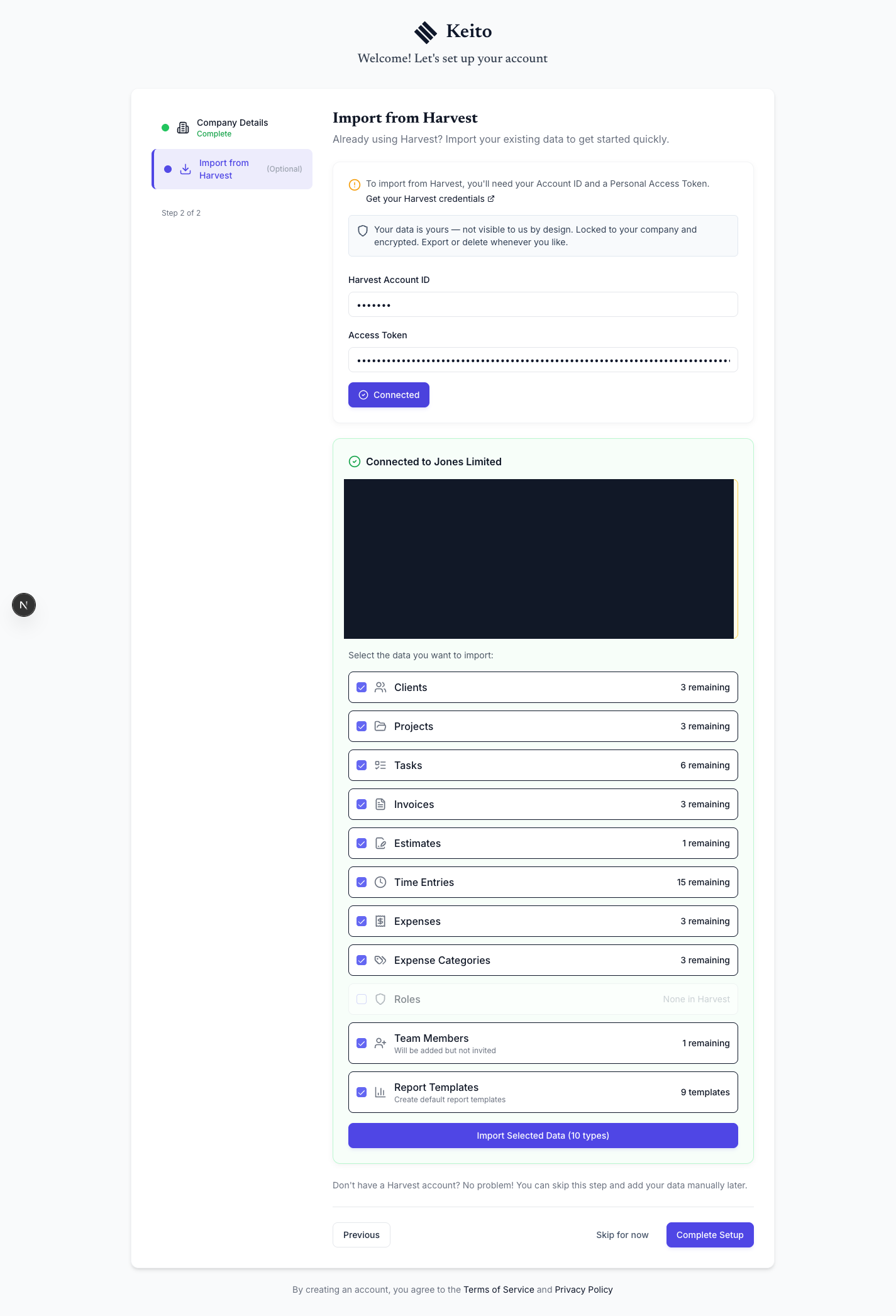
Stop here if the counts are wrong. Harvest API access follows the token owner’s permissions, so a non-administrator may see only part of the account.
4. Run the migration
Keito runs the import in dependency order:
- roles and users;
- clients, tasks, and expense categories;
- projects and assignments;
- time entries;
- expenses, invoices, estimates, and starter reports.
Later records depend on earlier mappings. For example, a time entry needs its user, project, and task before it can be created.
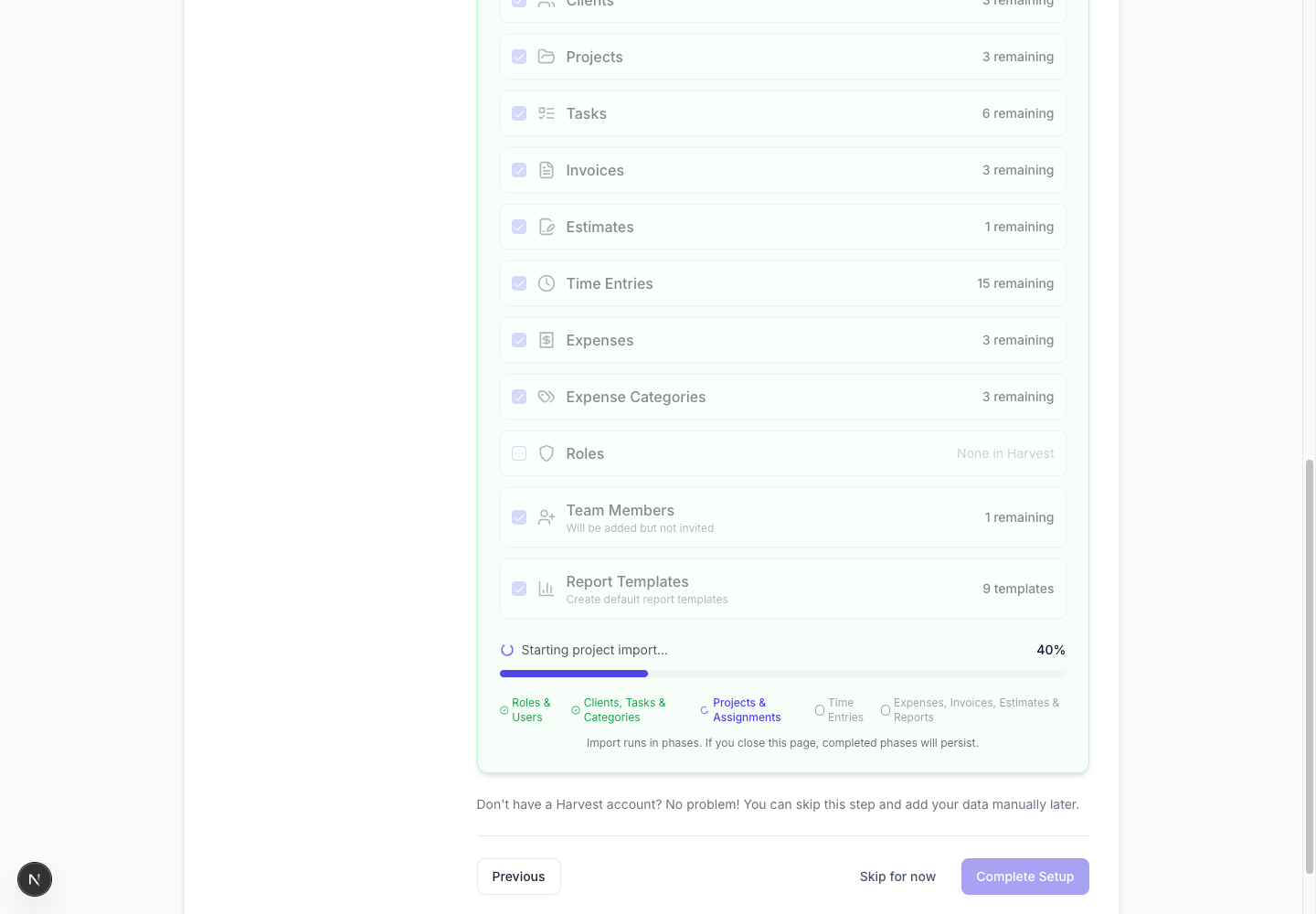
The larger project, time-entry, expense, invoice, and estimate stages run as resumable background jobs. Leave the page open for the clearest live progress view. If you close it, completed phases persist; return to the same import screen to see or resume the active migration.
Keito shows the current phase, processed count, and percentage. If a related Harvest record cannot be matched, the importer continues and shows a skipped-record summary when it finishes. Common reasons include a client deleted in Harvest, a project or task that was not imported, an unmapped Harvest user, or a missing expense category.
5. Complete setup
When every selected phase finishes, Keito shows a completed state.
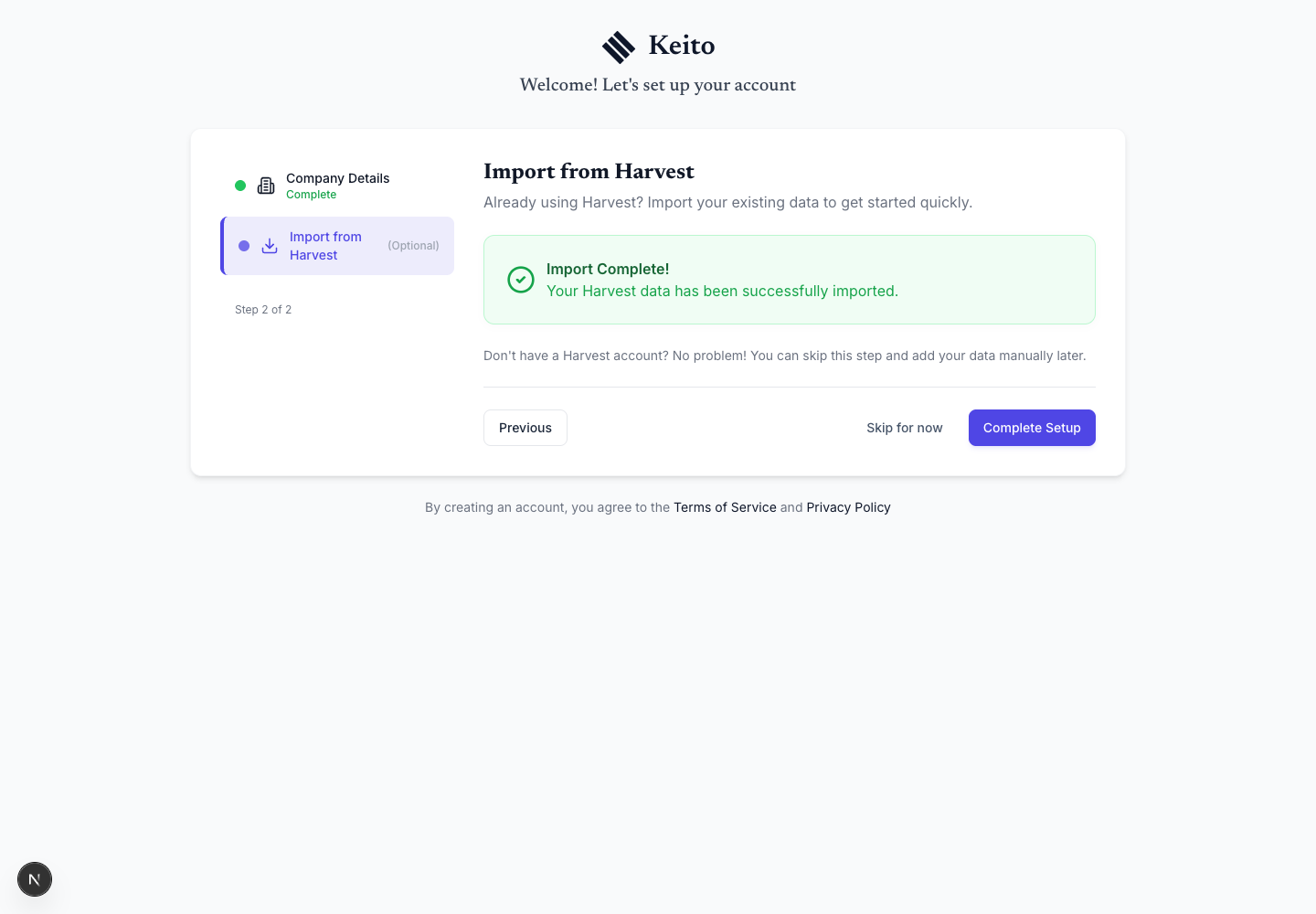
During workspace setup, select Complete Setup to enter the workspace. A repeat import stays in the existing workspace. Import completion is the start of reconciliation, not a guarantee that every source value or permission matches the team’s intended setup.
Review people before invitations
Open Team before sending invitation emails. Match each imported person to the correct identity, then open Edit details → Permissions to review their actual Member, Manager or Administrator access. Reporting roles under Manage → Roles, such as Designer or Consultant, are labels and do not grant access.
Review a manager’s Assigned people, Assigned projects, task restrictions, and financial and approval permissions separately. Check rates and invitation state too. For the full checklist and optional same-role permission templates, continue to Verify imported data before inviting the wider team.
How Harvest invoice history is handled
Keito requests the complete invoice list available to the connected Harvest account. The importer does not apply a year or invoice-date cutoff, so invoices from before the current year are included when Harvest returns them to the token owner.
Harvest invoice states map to Keito as follows:
| Harvest state | Keito state |
|---|---|
| Draft | Draft |
| Open or Partial | Open |
| Paid | Paid |
| Closed | Closed |
An unrecognised source state is imported as Draft so it can be reviewed safely.
The invoice page opens on Open & Draft by default. Historical paid and closed invoices are therefore not visible until you select All, Paid, or Closed. See Find and filter invoices for exact search and oldest-first instructions.
How Harvest retainers are handled
Retainers do not migrate automatically. Harvest’s public API marks the invoices that funded a retainer, but it does not return the retainer list, current balances, the project each retainer belongs to, or the invoices drawn from it. Harvest also has no retainer export. Record each retainer’s funded total, current balance, and draws from Harvest before the freeze.
When Invoices are selected, Keito imports the funding invoices it can identify and groups them by the Harvest retainer they funded. After the import, open Invoices → Retainers and work through each retainer once.
Map the deposits Keito detected
- Detected funding invoices appear under Map detected Harvest deposits, one group per Harvest retainer.
- Choose the matching project and select Create from deposits. Keito creates a project retainer with those funding invoices as its opening history.
- Open the retainer and compare Total added with the funded amount in Harvest before using it.
Create any retainer Keito did not detect
- Select New retainer, choose the client, then choose the project or All client projects if one balance covers every project for that client.
- Open the retainer and use Add funds to record the current Harvest balance as a single opening entry, with a note such as “Opening balance from Harvest”.
Use only one of these paths for each retainer. Mapping the historical deposits and also adding today’s balance counts the same funds twice.
Historical draws
Keito cannot rebuild draw history from the API. If you need it, open each retainer in Harvest and copy its funding invoices and draws into a spreadsheet with two sheets:
- Retainers: client, project, retainer name, total funded, funding invoice numbers;
- Draws: retainer name, invoice number, invoice date, amount drawn.
Send it to Keito support. Keito runs a dry run that matches each draw to the invoices already in your workspace and sends you a summary. Nothing changes until you approve that summary, and only the approved scope is applied.
Re-run an import safely
Harvest API imports match existing records by their Harvest identifiers within the selected workspace. When linked records already exist, How should existing records be handled? offers two modes:
| Mode | What it does |
|---|---|
| Protect Keito changes | The recommended default for a new import run. Adds selected new source records while protecting Keito edits on linked records. It does not remove existing time because it disappeared from Harvest. |
| Refresh existing Harvest-linked records | Reapplies selected Harvest fields to previously imported records and may overwrite changes made in Keito. Requires Confirm refresh existing records before starting. |
Harvest billing-state and approval reconciliation still run in Protect mode. Dated source rate periods can replace an original imported default that has never been edited. Resuming an older in-progress import can retain its original refresh behavior; do not assume the new-run default changes an existing job.
In refresh mode, Keito can also remove an eligible previously imported time entry after an individual Harvest check confirms the source record was deleted. This guarded removal applies to Harvest-linked time entries in the workspace, with checks for intervening edits, local classification overrides, billed or manually invoiced state, invoice links, and external time-sync links. A record missing from a list page is not enough. This is not a general deletion rule for clients, projects, invoices or other imported data.
A repeat import is not a source rollback. Review the selected mode, completion summary and financial results before changing either system. Equal preview and completion counts do not prove equal identities or values, and another run cannot reveal records outside the token owner’s API access.
API imports and spreadsheet imports do not share a universal duplicate guarantee. Do not upload the same historical records through both paths without first reviewing their identities and existing links.
Helping several clients move? Accounting and advisory firms can plan client migrations with us through the partner program.
Skipped and API-limited records
Review the completion summary before cutover. A skipped record usually means that one of its required dependencies was not available or could not be matched. Import that dependency, correct the source access, and re-run the affected data types when appropriate.
Some Harvest information is not exposed completely through its public API:
- future-only recurring invoice templates cannot be discovered until they have generated an invoice;
- recurring schedules reconstructed from invoice history remain disabled until an administrator confirms them;
- retainers are not returned as standalone records: funding invoices are imported for project mapping, while balances and draw history need manual entry or a supported reconciliation. See How Harvest retainers are handled.
These limitations do not impose an invoice-date cutoff. They apply to source features that Harvest does not return as complete standalone records.
What happens next
A green completion state confirms that the automated jobs finished; it is not the final business sign-off.
Continue with:
The full illustrated migration guide includes every import phase and resulting Keito screen.
If an invoice still appears to be missing
First select All on the invoice page and leave it selected. Search for the exact invoice number, or sort Issue Date oldest-first. Paid and closed invoices do not appear in the default Open & Draft view.
If the invoice is still absent, contact Keito support with:
- the email address used to sign in to Keito;
- two or three missing invoice numbers and their issue dates;
- the approximate time the import completed;
- the import phase or non-sensitive error shown, if any.
Do not send your Harvest Account ID, Personal Access Token, client names, invoice line items, or other customer content. Keito support can begin with high-level import status and record counts and ask for more only when necessary.
Review recurring invoice templates
Harvest’s public API does not expose future-only recurring templates. Keito can reconstruct a recurring schedule only when an imported historical invoice contains a Harvest recurring-invoice identifier.
An administrator must review each reconstructed schedule, amount, tax, and source setting before Keito enables future generation. A future-only Harvest template with no historical invoice must be recreated manually. See Recurring Invoices for the complete setup and review behaviour.