
Verify imported data
Validate the migration before the wider team starts work in Keito. Use the preview counts recorded before import, source-system reports, and financial totals rather than relying only on the completion message.
This checklist primarily covers Harvest. For Toggl Track’s self-only history, exact-second comparisons, retained conflicts and separate historical billing review, follow Verify the Toggl import. Do not apply the Harvest expense, invoice or retainer checklist as a claim that Toggl imports those areas.
For Forecast planning, follow Verify bookings in Plan. Compare booking counts, original dates, daily allocations, mappings, and exclusions with the scanned snapshot. Review calendar and capacity limits separately; the Harvest financial checklist does not apply to Forecast planning.
Record-count checks
Compare each selected source type with its result:
| Data | Where to check in Keito | What to compare |
|---|---|---|
| Clients | Manage → Clients | Count, name, address, project relationships |
| Projects | Projects | Count, client, code, budget, assignments |
| Tasks | Manage → Tasks | Names, default rates, project availability |
| Team | Team | Identity, role, workspace access, invitation state |
| Time entries | Time and Reports | Count, date, person, project, task, duration, billable state |
| Expenses | Expenses | Count, date, project, category, amount, billable state |
| Invoices | Invoices → All | Number, client, dates, state, amount, outstanding balance. Use Find and filter invoices for historical records. |
| Estimates | Estimates → All | Number, client, dates, state, line items, amount |
| Retainers | Invoices → Retainers | Every Harvest retainer has a Keito retainer, mapped deposits match the funded total, and the balance matches Harvest. See How Harvest retainers are handled. |
| Settings | Settings | Currency, timezone, time preferences, working week |
Keito includes default tasks and expense categories. Matching defaults can be reused during import, so final target totals may not equal the number of new records created. Validate names and relationships as well as totals.
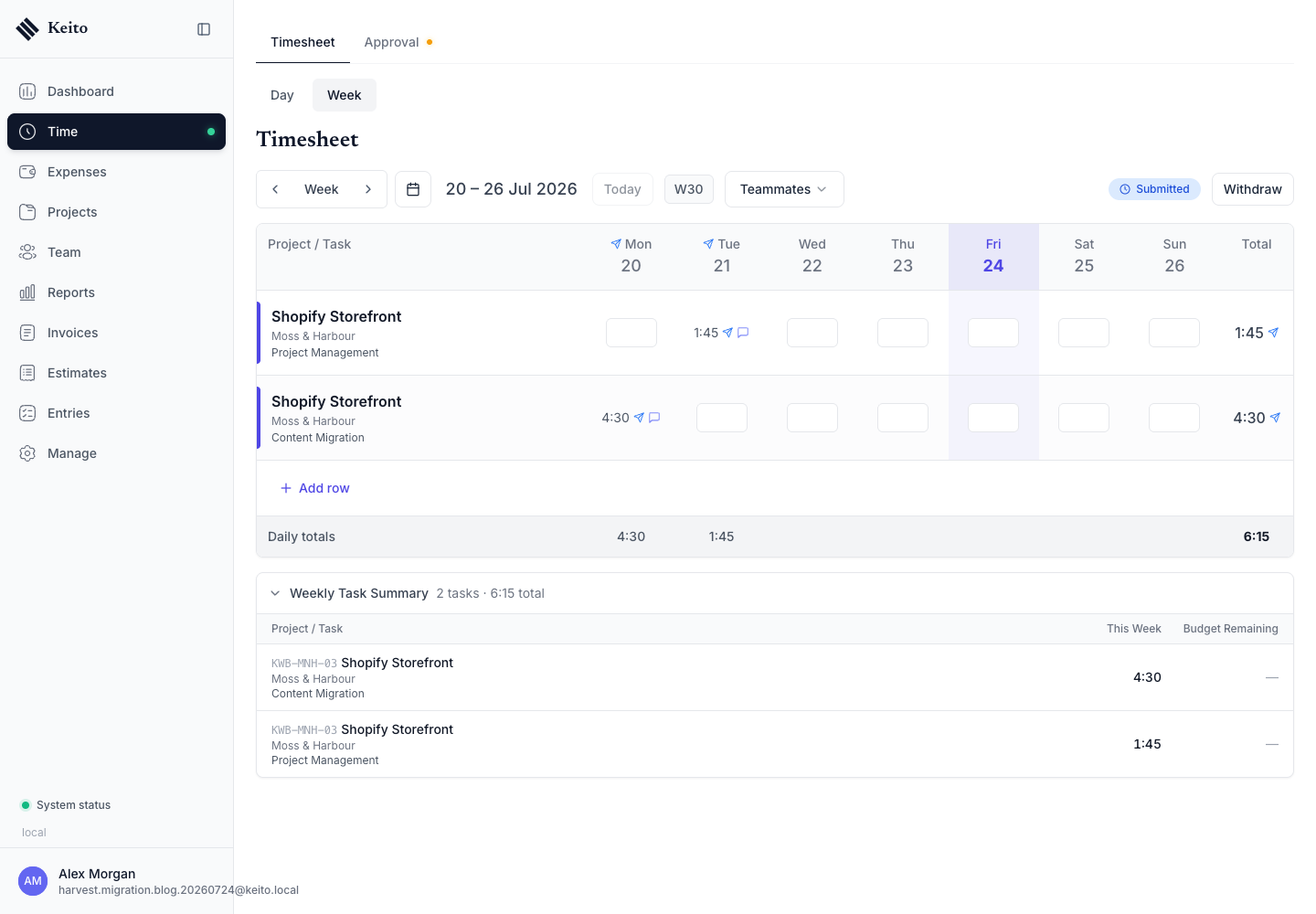
Time and project checks
Select at least:
- one recent week;
- one older historical week;
- one billable project;
- one non-billable entry when the source contains one;
- one project with a budget.
Confirm the person, project, task, date, duration, notes, and billable state.
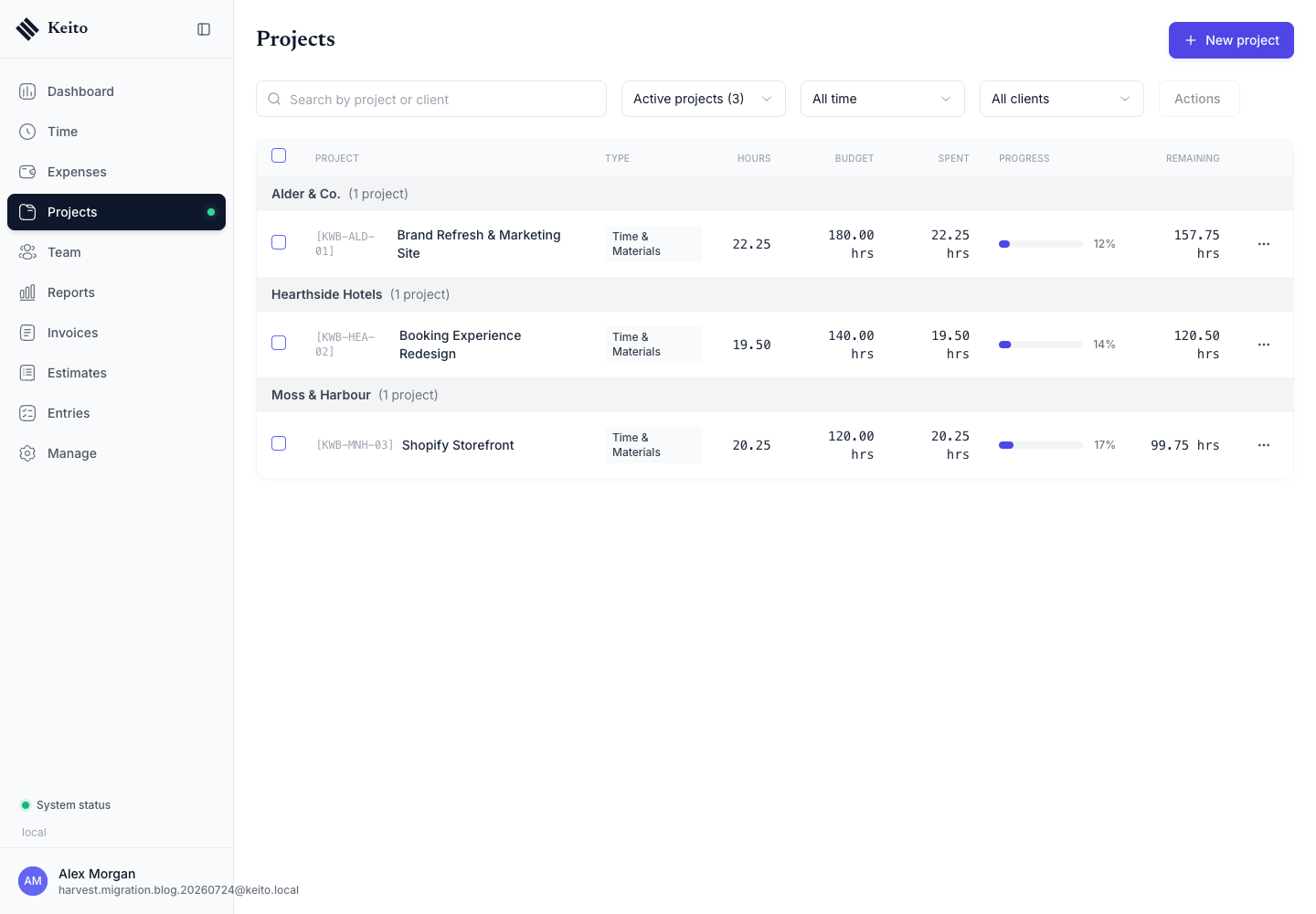
Then compare project codes, client relationships, recorded hours, and remaining budgets.
Financial checks
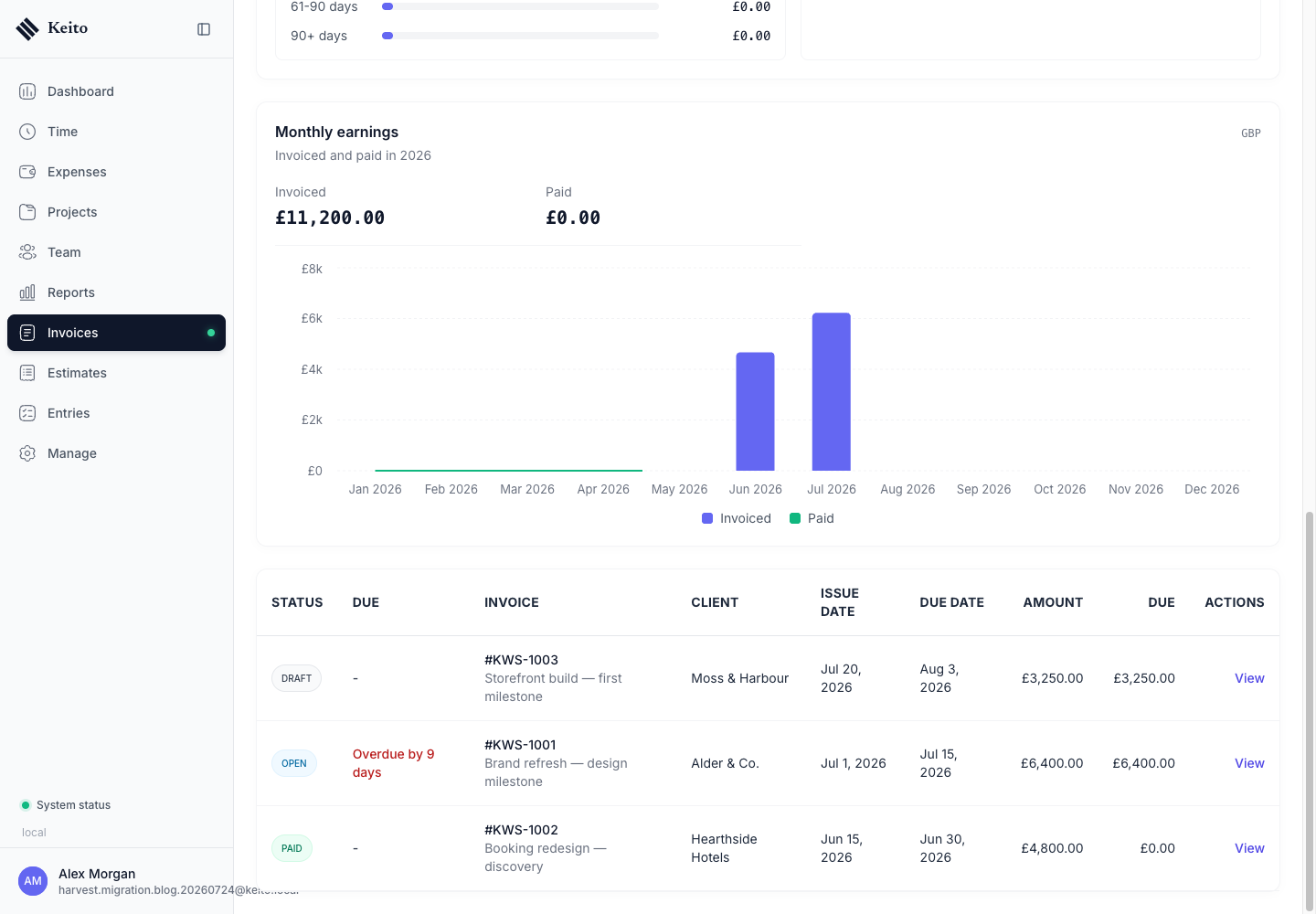
Financial validation needs totals as well as record counts.
For invoices:
- compare total invoice value;
- compare outstanding balance;
- spot-check draft, open, paid, and cancelled states present in the source;
- compare document numbers, issue dates, due dates, taxes, and line items;
- confirm each invoice belongs to the correct client and project.
For expenses, compare total value by currency and spot-check categories, project relationships, notes, and billable states. For estimates, select All so accepted, declined, and expired documents are included.
For retainers, confirm that no group is still waiting under Map detected Harvest deposits, that each retainer’s Total added matches the amount funded in Harvest, and that the current balance matches Harvest. Harvest does not return balances or draw history, so this check is manual.
People and permissions
The Harvest importer does not send invitation emails automatically. Pending invitation records may already exist; review their state before choosing who should receive access.
Before inviting anyone, open Team and review each imported person:
- match the Harvest person to the correct Keito identity;
- open Team → Edit details → Permissions and check the actual Member, Manager or Administrator access level;
- review manager Assigned people, Assigned projects, task restrictions, and financial and approval permissions;
- confirm hourly and billable rates;
- remove access that should not carry into the new workspace.
Reporting roles do not grant access. Labels under Manage → Roles, such as Designer or Consultant, are separate from the person’s access level and permission switches. See Roles & Permissions for the distinction.
Owners and administrators on Pro or Business can optionally use Permission Templates after enabling the tool. Save a template for the person’s existing Member or Manager role, select eligible people, choose Preview permissions, review the before-and-after changes, then choose Apply permissions. Unchecked choices in the editor can remove existing grants, so review a custom setup before applying.
Templates do not promote roles, change teammate/project assignments or task restrictions, automatically propagate later template edits, or send invitations or grant sign-in access. Review those boundaries individually and send invitations as a separate action only after sign-off.
Sign-off record
Record the result outside the migration token or credentials:
| Check | Owner | Result |
|---|---|---|
| Source and target record counts | Migration owner | Pass / follow-up |
| Total imported hours | Operations owner | Pass / follow-up |
| Project and task mappings | Project owner | Pass / follow-up |
| Expense totals | Finance owner | Pass / follow-up |
| Invoice values and balances | Finance owner | Pass / follow-up |
| Retainer balances | Finance owner | Pass / follow-up |
| User roles and permissions | Workspace administrator | Pass / follow-up |
| Currency, timezone, and working week | Workspace administrator | Pass / follow-up |
Resolve every follow-up before making Keito the system for new work. If a phase repeatedly fails, record the phase and non-sensitive error message, then contact Keito support. Include the Keito login email plus two or three missing invoice numbers and issue dates when the problem concerns invoices. Never send the Personal Access Token or invoice contents.
Next step
When verification is signed off, use the cutover checklist.